
- What is TestInvite?
- Build Your First Test
- Run Your First Assessment
- Taking the Assessment
- Viewing the Results
- Question Bank Overview
- Common Question Features
- Question Types
- Creating Questions
- Organizing Questions
- Content Blocks
- Roles & Access
- Media Library
- Import & Export
- Question Submissions
- Question Bank Schema
- Browsing Questions
- Cloning Questions
- Bulk Updating Questions
- Tests Overview
- My Tests
- Creating a Test
- The Test Editor
- Test Settings
- Sections & Pages
- Adding Questions
- Page Builders
- Test Profile
- Reporting
- Test Papers
- Analytics
- Publishing a Test
- Test Library
- Marketplace
- Tasks Overview
- Creating a Task
- Task Dashboard
- Steps
- Task Settings
- Candidates
- Test Sessions
- Sent Mails
- Proctoring
- Analytics
Organizing Questions
How to organize the Question Bank using folders, tags, schema enforcement, bulk actions, search, and sort.
Every question in TestInvite carries a rich set of organizational properties — folder, tags, labels, language, and status. Together with the Question Bank Navigator, these properties let you find exactly the right questions at any scale, whether your bank has fifty questions or fifty thousand.
Folders and Sub-folders
Folders organize your questions into a hierarchy. You can create flat folders ("Grammar", "Math") or nested hierarchies ("Math/Algebra/Quadratics"). The navigator's folder picker displays this tree with expand and collapse controls, a search field, and a question count next to each folder.
Each question belongs to exactly one folder. Folders are created on the fly when you first assign a question to them, or you can define them in advance via the Schema.
Tags
Tags are structured key-value metadata attached to questions. For example: difficulty: hard, topic: algebra, source: internal, year: 2024. Tags enable fine-grained filtering that folders alone cannot provide — you can filter by multiple tag conditions simultaneously and even exclude specific values.
Labels
Labels are free-form strings you attach to questions — think of them as sticky notes. Unlike tags, they have no key part: just a word or short phrase such as needs review, exam-ready, or translated. Labels are ideal for lightweight, ad-hoc classification that doesn't fit the structured tag system. Multiple labels can be assigned to a single question.
Language
You can mark the language a question is written in using an ISO 639-1 code such as en, tr, or de. Once set, the Language filter in the navigator lets you scope the question list to a specific language — useful for organizations that run assessments in multiple languages.
Status
Each question has a workflow status that tracks its readiness:
- Draft — work in progress; the question is not yet ready for use
- Review — submitted for quality review by a supervisor
- Ready — approved and eligible to be included in tests
Status is set manually on each question. When using the submission workflow, the supervisor can also set the question's status at the point of approval. Use the Status filter in the navigator to see which questions need attention at any point in your review workflow.
The Schema
The Schema (a premium feature) enforces naming conventions across your question bank. Configure it in Question Bank Settings → Schema.
- Strict folders — only folders defined in the schema are allowed. Questions cannot be saved to undefined folders.
- Required tags — certain tags must be present on every question in a folder before it can be saved.
- Strict tag values — tag values must match a predefined list, preventing typos and inconsistencies.
The Schema is especially valuable in large teams where multiple contributors add questions, ensuring consistent metadata that makes filtering and reporting reliable.
Bulk Actions
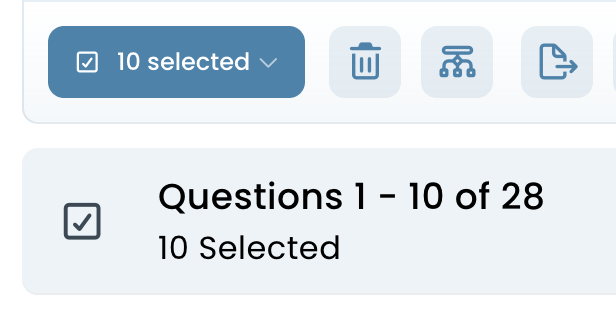
Select multiple questions using the checkboxes to perform bulk operations:
- Mass update — update the folder, tags, labels, language, status, or scoring dimensions across all selected questions at once
- Create test from selection — instantly create a new test pre-populated with the selected questions
- Export — export selected questions as JSON or CSV
- Delete — remove selected questions from the bank
Managing selected questions with bulk actions
The Question Bank Navigator
The navigator sits at the top of the Questions tab. It has two rows of controls — the folder row and the filter bar — and an optional chip row that appears when filters are active.
Folder Row
The top row handles folder selection and folder-level sorting:
- Sort folders (icon button) — toggle between A–Z and largest-to-smallest to control how folders are ordered in the picker
- Folder picker — click to open a searchable tree of all your folders. Select "All folders" to browse your entire bank, or pick a specific folder to scope the view. Folders with sub-folders show an expand arrow; the question count appears next to each folder name. Selecting a different folder resets all active filters.
- Favorite (star icon) — mark the current folder as your default so it opens automatically next time you visit the Question Bank
Filter Bar
The second row is a horizontally scrollable bar of filter buttons. Active filters are shown with a filled style and a count badge. Each button opens a popup panel where you configure the filter, then click Apply filter to commit it. Counts next to each option update live to show how many questions match.
- Type — filter by question type (MCQ, Matching, Short Answer, Long Answer, Numeric, Rich Input, Audio, Video, File Upload, Code, Photo, Tabular). Multi-select: selecting multiple types returns questions matching any of them.
- Status — filter by workflow status (Ready, Draft, Review). Single-select.
- Language — filter by the question's language code. Only appears when at least one question has a language assigned. Single-select.
- Dimensions — filter by scoring framework dimensions. Only appears if your organization has a Scoring Framework configured. Multi-select: selecting multiple dimensions returns questions belonging to any of them.
- Tags — two-level filter. At the top level, click a tag key to include all questions that have that key set to any value. Expand a key with the chevron to see individual values: click a value to include it; click the ban icon to exclude it. Multiple values within the same key are OR-combined; conditions across different keys are AND-combined.
- Labels — filter by label. Only appears when at least one question has a label assigned. Multi-select.
- Sort — control the order of the question list (see Sort Options below).
Active filters are displayed as chips below the filter bar. Click the × on any chip to remove it individually, or click Clear all to reset all filters at once.
Sort Options
Open the Sort panel to order the question list by:
- Default — no explicit ordering
- Type — grouped by question type
- Status — Ready first, then Review, then Draft
- Language — alphabetical by language code
- Folder — alphabetical by folder path. Only available when "All folders" is selected.
- Most dimensions — questions with the most scoring dimensions first
- Most tags — questions with the most tags first
- By [tag key] — sort by the value of a specific tag. Available dynamically when a tag key is active in the Tags filter (up to 3 keys). Numeric values sort as numbers; text values sort alphabetically.