
- What is TestInvite?
- Build Your First Test
- Run Your First Assessment
- Taking the Assessment
- Viewing the Results
- Question Bank Overview
- Common Question Features
- Scoring
- Question Types
- Question Authoring
- Browsing Questions
- Content Blocks
- Media Library
- Metadata Rules & Schema
- Tests Overview
- My Tests
- Creating a Test
- The Test Editor
- Test Settings
- Sections & Pages
- Adding Questions
- Page Builders
- Test Profile
- Reporting
- Test Papers
- Analytics
- Publishing a Test
- Test Library
- Marketplace
- Tasks Overview
- Creating a Task
- Task Dashboard
- Steps
- Task Settings
- Candidates
- Test Sessions
- Sent Mails
- Proctoring
- Analytics
- Analytics Overview
- Test Analytics
- Question Analytics
- Per-Question Analytics
- Results Explorer
- Segment Analysis
Multiple Choice
Everything you need to know about creating and configuring Multiple Choice questions in TestInvite.
Multiple Choice is the most versatile and widely used question type. Candidates select one or more answers from a list of choices. Everything from the number of correct answers to the visual layout of choices is configurable.
Writing the Question
Start by writing your question prompt using the content editor. The editor supports rich content — formatted text, images, tables, code blocks, mathematical expressions, and more. See Content Editor for a full guide to everything the editor supports.
You can also choose how the prompt is displayed alongside the choices. The default regular layout shows the prompt above the choices. Switch to sidebar layout to display reference material — a reading passage, diagram, or data table — next to the choices instead. See Layout for details.
Choices
Add as many answer choices as needed. Each choice supports rich content — not just plain text. Mark one or more choices as correct. A question with a single correct choice works as a classic single-answer question; marking multiple choices as correct makes it a multi-answer question.
To use the Advanced editor for answer choices, click the settings (gear) icon in the Choices section and enable Advanced editor. This displays additional rich-text formatting tools when editing choices. Click Save in the settings dialog to apply the change.
Scoring
By default, scoring is straightforward: if the candidate selects the correct choice, they receive the full point value assigned to the question. The point value is set at the question level using the positive multiplier. You can also assign dimensions to the question so a correct answer contributes to per-competency scores in the result report. See Scoring for the full reference.
Partial Scoring
For multi-answer questions, you can enable Partial Scoring in the choices settings. With partial scoring active:
- Each choice is assigned a percentage contribution toward the question’s overall success rate (between -100% and 100%).
- The success rate is multiplied by the question’s point multiplier to produce the final score. For example: 75% × 4 points = 3 points.
- If the success rate is negative, the negative multiplier is applied instead.
- A threshold can be set to require a minimum success rate before any points are awarded.
Partial scoring is optional and only relevant for multi-answer questions where you want to reward candidates who get some choices right even if they don’t get them all.
Effects
Each choice can optionally trigger a side effect — a bonus or penalty score calculated separately from the main score, applied regardless of whether partial scoring is enabled.
Selection Constraints
Control how many choices a candidate can select:
- Minimum selection — the candidate must select at least this many choices before they can submit.
- Maximum selection — the candidate cannot select more than this many choices.
For a classic single-answer question set maximum selection to 1. For a “select all that apply” question leave both unconstrained or set a minimum.
Shuffle
Enable Shuffle to randomize the order of choices for each candidate. Individual choices can be pinned to a fixed position even when shuffle is on.
Display Settings
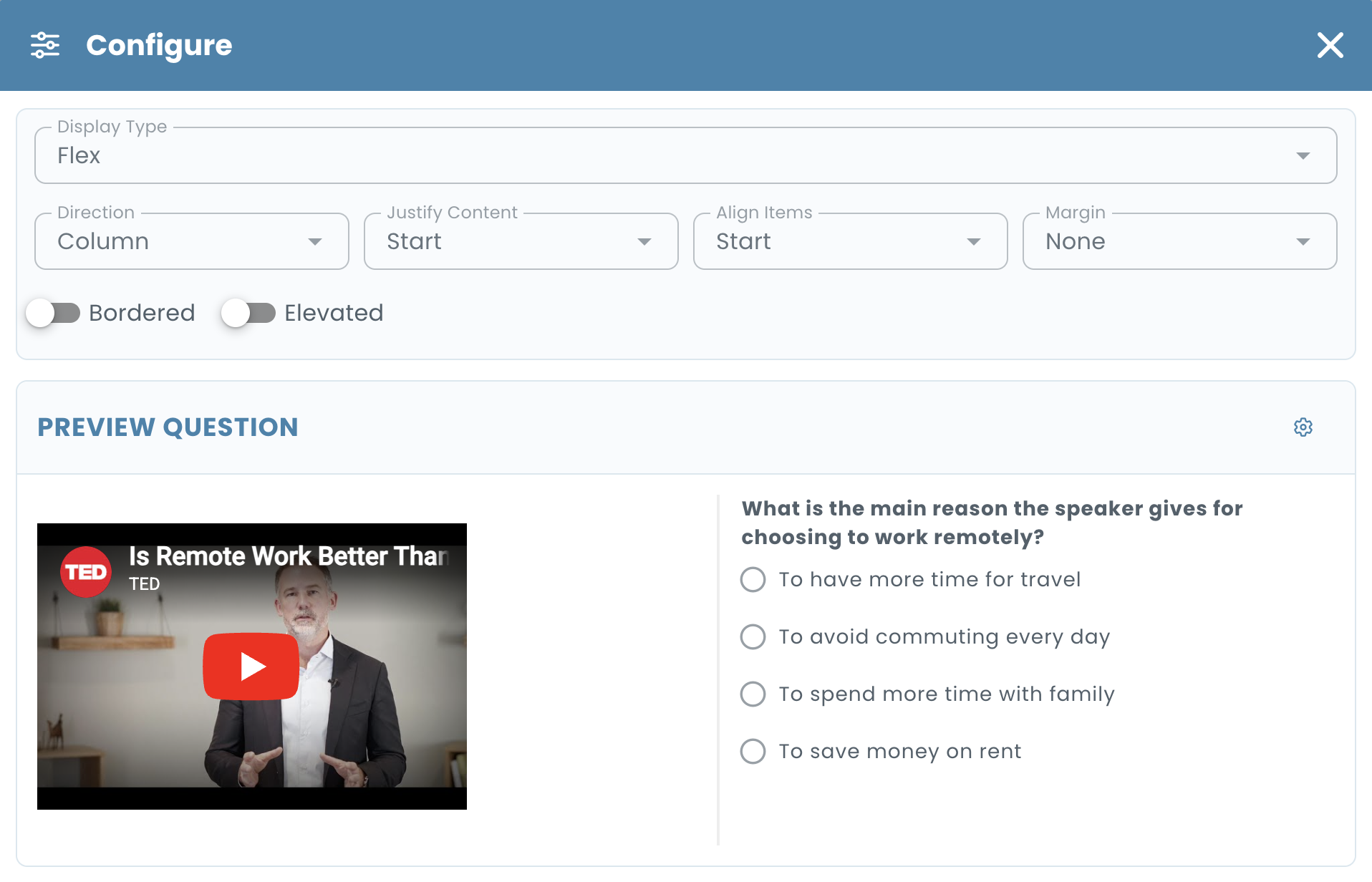
Click the Display button (monitor icon) to configure how choices are presented to candidates — layout style, label format (letters, numbers, or none), and column count.
Hint
You can attach an optional hint to the question — guidance the candidate can choose to reveal during the test without giving away the answer. See Hint for details.
Answer Explanations
Add an explanation that is shown to the candidate after they submit — the correct answer rationale, a reference, or follow-up context. Only shown if the test is configured to reveal answers. See Answer Explanations for details.
Folder & Tags
Before saving, assign the question to a folder and add tags to keep your bank organized. If your organization has a Schema configured, available folders and required tags will be enforced at this point. See Question Metadata for details.
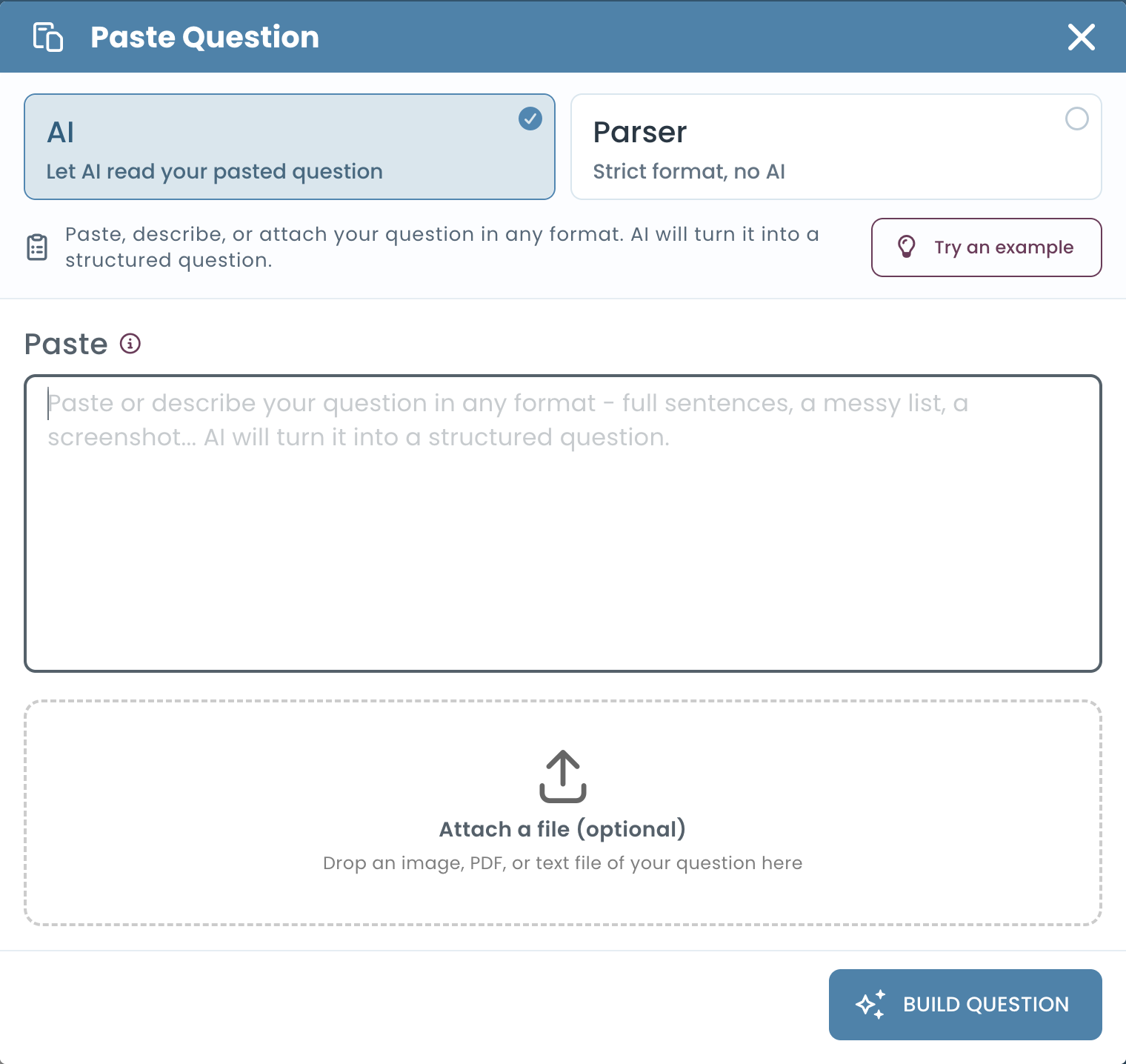
Paste from Text
Click the Paste button to import a question and its choices from plain text. Useful when migrating from Word documents, spreadsheets, or other systems — the paste dialog parses your text and populates the choices automatically.
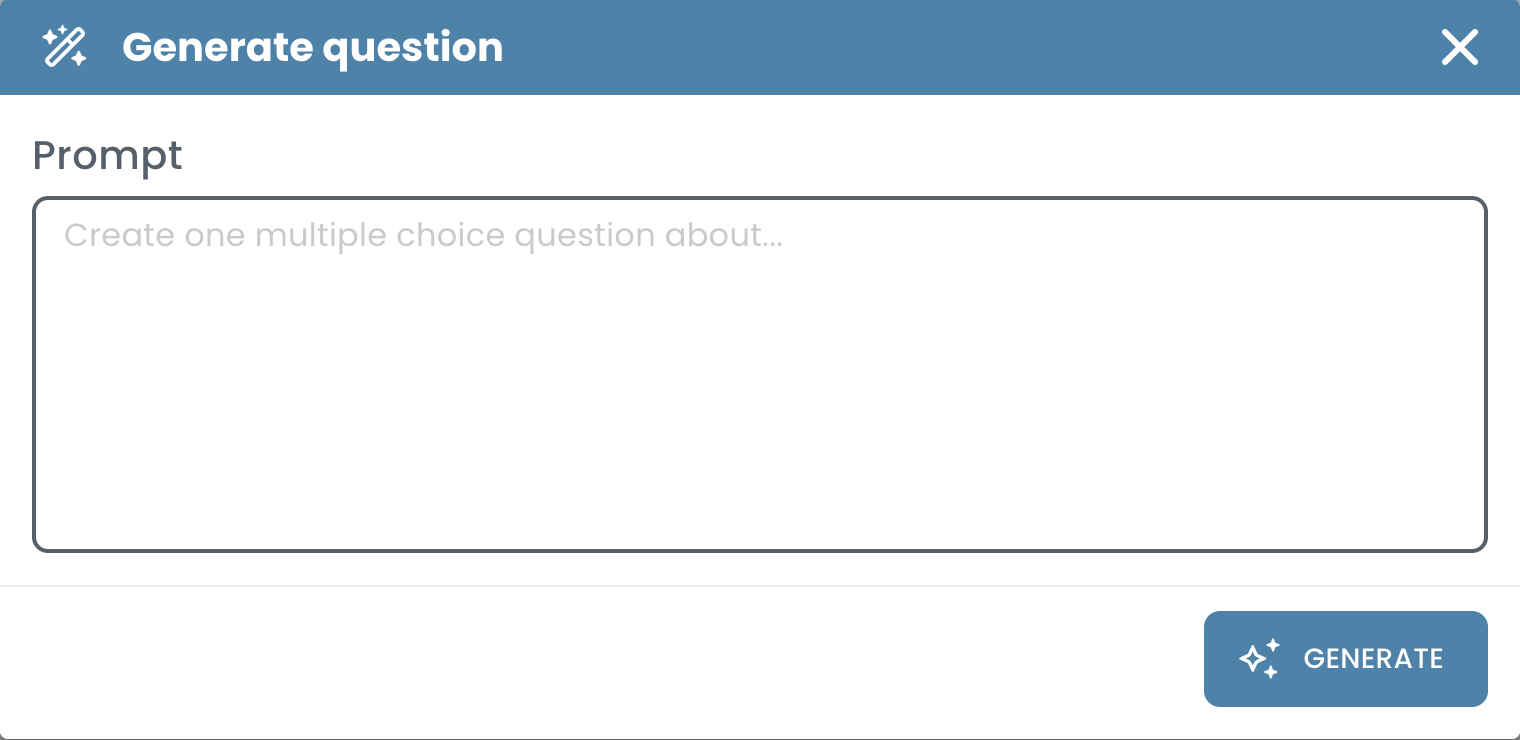
Generate with AI
Click the Generate button (wand icon) to create a complete multiple choice question using AI. Provide a topic or context, and the AI generates the question text and answer choices for you to review and edit before saving.
Preview & Scoring Simulation
Click Preview to see the question exactly as a candidate would see it and simulate how different answer selections affect the score. See Preview & Scoring Simulation for the full reference on preview options.
Analytics
Once the question has been used in real assessments, click the Analytics button (chart icon) to view its difficulty index and discrimination index. Available on plans that include analytics.
Saving
Use Save to stay on the editor or Save & Add Another to immediately start a new question of the same type.