
- What is TestInvite?
- Build Your First Test
- Run Your First Assessment
- Taking the Assessment
- Viewing the Results
- Question Bank Overview
- Common Question Features
- Scoring
- Question Types
- Question Authoring
- Browsing Questions
- Content Blocks
- Media Library
- Metadata Rules & Schema
- Tests Overview
- My Tests
- Creating a Test
- The Test Editor
- Test Settings
- Sections & Pages
- Adding Questions
- Page Builders
- Test Profile
- Reporting
- Test Papers
- Analytics
- Publishing a Test
- Test Library
- Marketplace
- Tasks Overview
- Creating a Task
- Task Dashboard
- Steps
- Task Settings
- Candidates
- Test Sessions
- Sent Mails
- Proctoring
- Analytics
- Analytics Overview
- Test Analytics
- Question Analytics
- Per-Question Analytics
- Results Explorer
- Segment Analysis
Match
Candidates pair items from a left column with options from a right column using four layout modes and partial scoring.
A Match question asks candidates to pair items from one list with options from another. Each item on the left must be matched to one or more options on the right. Partial scoring is supported — each correctly matched pair earns points independently. Like Multiple Choice questions, Match questions also support AI generation and paste from text.
Writing the Question
Write the question prompt using the Content Editor. Clearly describe the matching task. For additional context, see Layout.
Items and Options
- Items — each item is a matching prompt. Add items with the + control.
- Options — add answer options under each item. In option settings, choose This item only or All items. Shared options can have Limit uses and Max uses settings.
- Management — item menus provide editing, reordering, reporting names and no-answer scoring. Option menus include editing, reordering and effects.
Layout Modes
Use the monitor-shaped Display control in Items to choose a layout and inspect its preview:
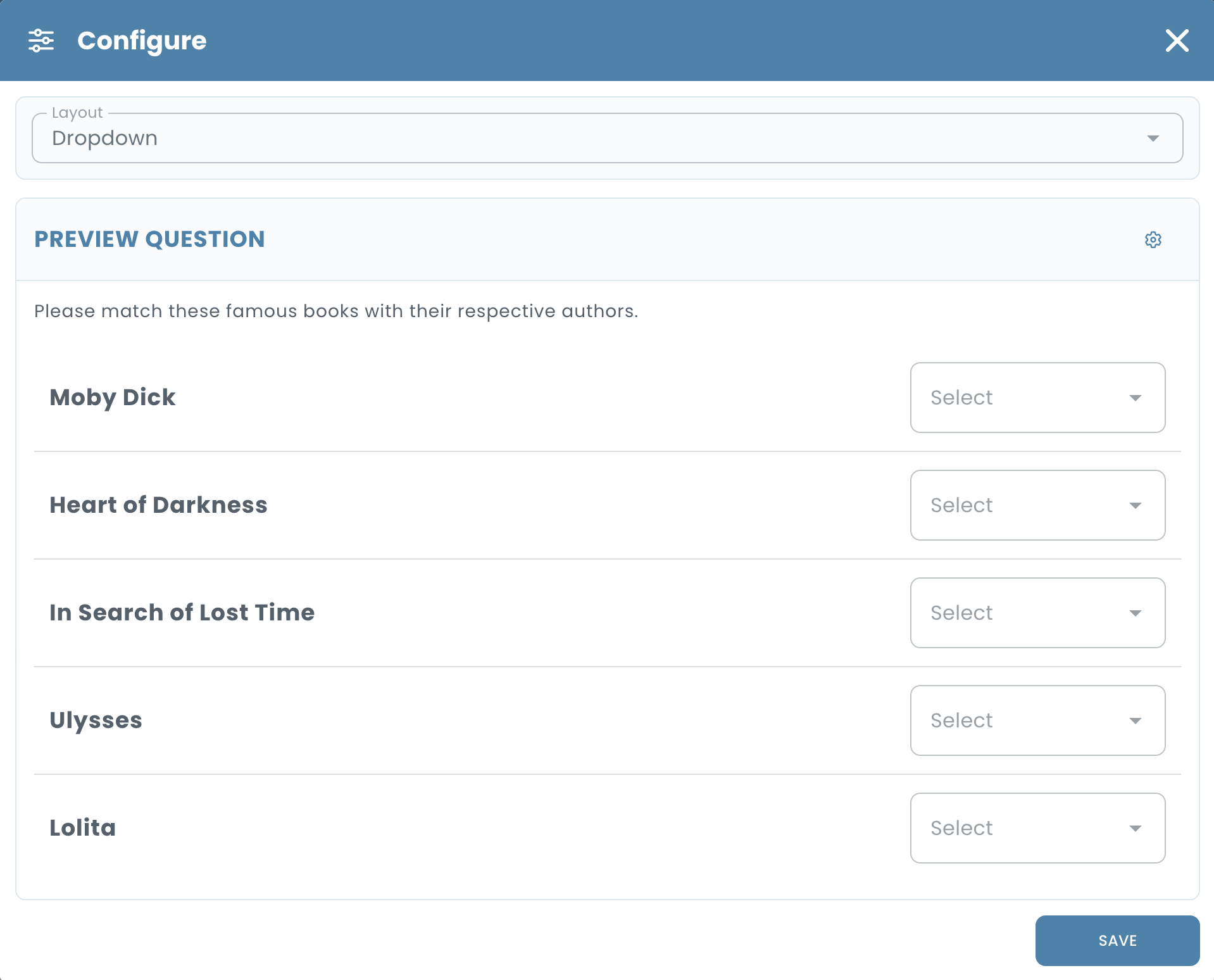
- Dropdown — a dropdown for choosing a match beside each item.
- Inline options — selectable option buttons displayed beside each item.
- Matrix — items appear as rows and choices as columns with selection controls.
- Drag and drop — drag options into the corresponding item selection area.
Scoring
Configure each option as Correct or Incorrect and set its percentage score. No-answer scoring can assign a score and effects when an item is left unmatched. Items settings include Partial scoring and a percentage Threshold. Option-specific Effects are available. Scores depend on these configurations, not necessarily a simple count of correctly matched pairs. See Scoring and Effects.
Matching Constraints
Open the Items gear icon to configure Min. selection and Max. selection. Both provide Unlimited and numerical options. The saved settings appear as labels above the items. This dialog also offers Advanced editor; additional controls in that mode are not detailed here.
Display Settings
Click the monitor-shaped Display button in Items, choose Dropdown, Inline options, Matrix or Drag and drop, inspect the candidate-facing preview, and click Save.
Paste from Text
Click the Paste button to import items and options from plain text. Useful when migrating from Word documents or other systems.
Generate with AI
Click Generate. In Generate question, choose Separate options per item (each item has its own answer choices) or One option list for all items (shared choices). Enter a Question prompt, click Generate Question, and review the resulting items and options before saving.
Analytics
Once used in real assessments, click the Analytics button to view difficulty and discrimination data. Available on plans that include analytics.
Common Features
Match questions also support Hint, Answer Explanations, Folder, Tags and Preview & Simulation. Use Save or Save & Add Another to store the question.