
- What is TestInvite?
- Build Your First Test
- Run Your First Assessment
- Taking the Assessment
- Viewing the Results
- Question Bank Overview
- Common Question Features
- Scoring
- Question Types
- Question Authoring
- Browsing Questions
- Content Blocks
- Media Library
- Metadata Rules & Schema
- Tests Overview
- My Tests
- Creating a Test
- The Test Editor
- Test Settings
- Sections & Pages
- Adding Questions
- Page Builders
- Test Profile
- Reporting
- Test Papers
- Analytics
- Publishing a Test
- Test Library
- Marketplace
- Tasks Overview
- Creating a Task
- Task Dashboard
- Steps
- Task Settings
- Candidates
- Test Sessions
- Sent Mails
- Proctoring
- Analytics
- Analytics Overview
- Test Analytics
- Question Analytics
- Per-Question Analytics
- Results Explorer
- Segment Analysis
Cloning Questions
How to clone one or more questions in the Question Bank — selecting a destination folder and controlling how tags and labels are copied.
Cloning creates an exact copy of one or more questions. The originals are left unchanged. You can redirect clones to a different folder and control how tags and labels are handled on the copies.
How to Clone
- In the Questions tab, select the questions you want to clone using the checkboxes in the question list. Selections can include questions from more than one folder — for example when browsing “All folders” or using Find by ID.
- Click the Clone button in the toolbar. The button is disabled until at least one question is selected.
- Configure the clone options in the dialog that opens (see below).
- Click Confirm. New copies of the selected questions are created immediately.
Clone Options
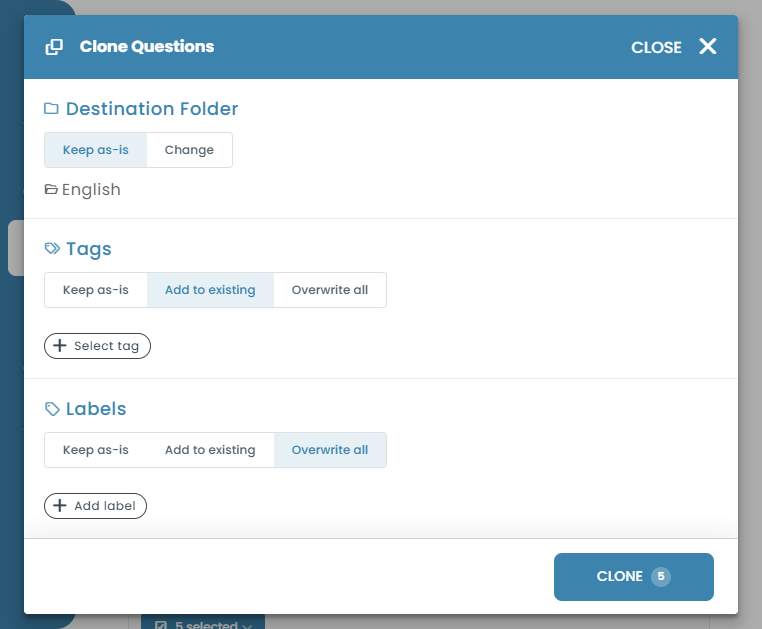
Each option — Folder, Tags, Labels — uses the same toggle: Keep to leave things as they are on the originals, or a second choice to change them on the clones.
Folder
With Keep selected (the default), each clone is placed in the same folder as its own original — if your selection spans multiple folders, the dialog shows “Keep original folders (N folders)” and each clone still lands in its source question's folder. Switch to Change to redirect all clones to a single destination folder instead. This is useful when you want to reuse questions from one topic area as a starting point for another.
Tags
Three modes control how tags are handled on the cloned questions:
- Keep — clones inherit all tags from the originals, unchanged.
- Add — clones inherit the original tags plus any new tags you specify.
- Overwrite — clones are given the tags you specify; original tags are discarded.
Labels
The same three modes apply to labels: Keep, Add, or Overwrite.
Plan Limits
If cloning the selected questions would exceed your plan's question limit, a warning banner appears in the dialog and the Confirm button is disabled. The banner shows how many slots remain and includes a link to upgrade your plan.