
- What is TestInvite?
- Build Your First Test
- Run Your First Assessment
- Taking the Assessment
- Viewing the Results
- Question Bank Overview
- Common Question Features
- Scoring
- Question Types
- Question Authoring
- Browsing Questions
- Content Blocks
- Media Library
- Metadata Rules & Schema
- Tests Overview
- My Tests
- Creating a Test
- The Test Editor
- Test Settings
- Sections & Pages
- Adding Questions
- Page Builders
- Test Profile
- Reporting
- Test Papers
- Analytics
- Publishing a Test
- Test Library
- Marketplace
- Tasks Overview
- Creating a Task
- Task Dashboard
- Steps
- Task Settings
- Candidates
- Test Sessions
- Sent Mails
- Proctoring
- Analytics
- Analytics Overview
- Test Analytics
- Question Analytics
- Per-Question Analytics
- Results Explorer
- Segment Analysis
Media Library
A centralized store for images, audio, video, and files used in questions — with folders, storage tracking, and archiving.
The Media Library is a centralized repository for all media assets used in your questions — images, audio files, video files, and documents. Uploading media to the library first means you can reuse the same asset across multiple questions without re-uploading it each time.
Supported Media Types
- Images — PNG, JPG, GIF, SVG, and other common image formats
- Audio — MP3, WAV, and other audio formats for listening exercises
- Video — MP4 and other video formats for visual stimulus material
- Files — PDFs and other documents to embed in question prompts
Uploading Media
Navigate to Question Bank → Media Library and click Add Item. Choose Image, Audio, Video, or File, then select a file from your device. For images, you can optionally adjust the image using Crop, Resize, or Original. In the Set metadata step, enter or review the Name, choose a Folder, and optionally add Labels. Click Add to make the media item available in the library.
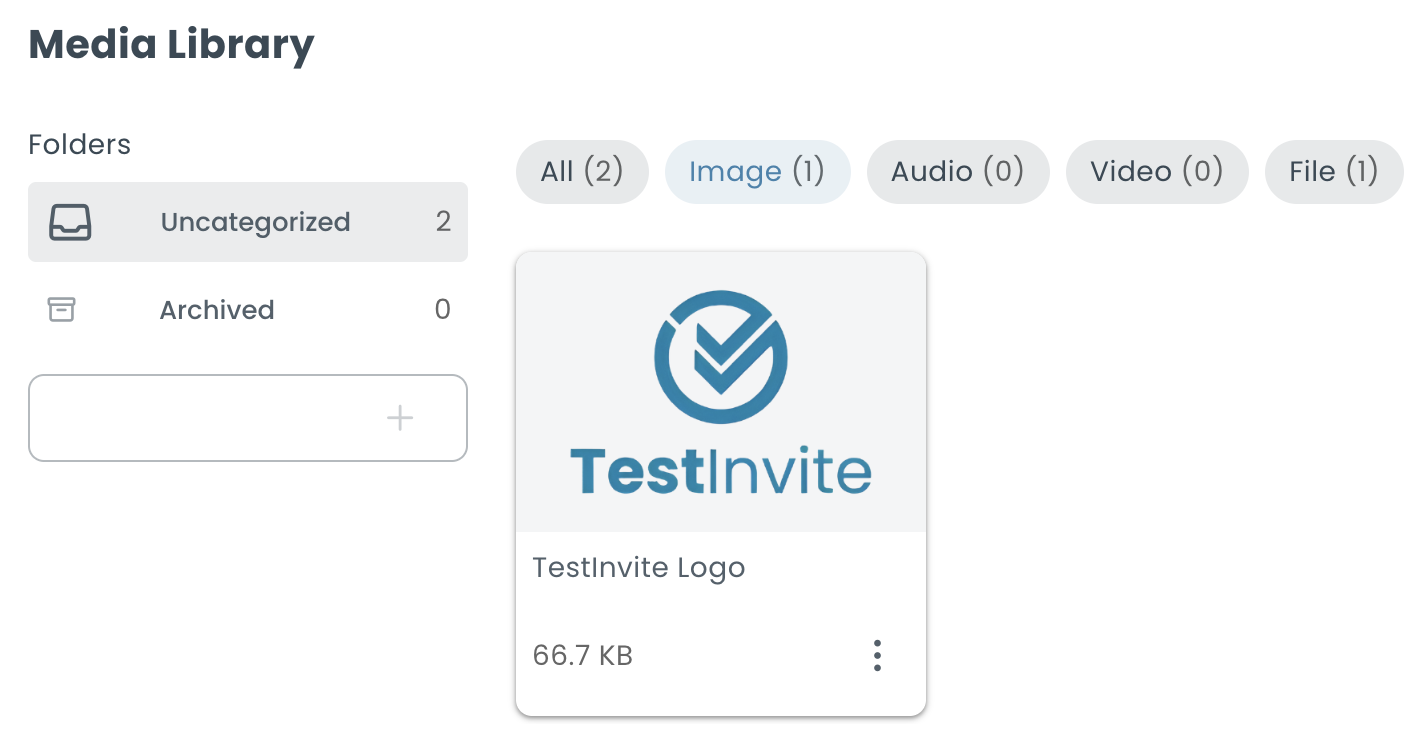
Organizing and Finding Items
Create folders to group media by topic, assessment type, or any other category. Mark a folder as a favorite for quick access, and use the Uncategorized pseudo-folder for items not yet assigned anywhere. To find items fast, filter the view by kind (all / image / audio / video / file) and by label.
Using Media in Questions
When writing a question in the content editor, use the relevant image, audio, or video insertion control. You can Upload file directly, supply a URL, or choose an existing asset from Media Library without copying its URL first. In the Media Library picker, browse folders and use the label filter to find an item, then select it; available display options depend on the media type. The Media Library item's Copy URL action remains useful when you need a direct asset link.
Storage Tracking
The Media Library shows your total storage usage and the amount used by archived items. Storage limits depend on your subscription plan.
Archiving and Deleting
Archive items that are no longer in active use but that you want to keep accessible. Archived items count toward your storage usage and appear in the Archived virtual folder. Permanently deleting items removes them from storage entirely.
Upload images at the highest resolution you need for questions. The editor will display them at the appropriate size, but uploading low-resolution images cannot be undone without re-uploading.