
- What is TestInvite?
- Build Your First Test
- Run Your First Assessment
- Taking the Assessment
- Viewing the Results
- Question Bank Overview
- Common Question Features
- Scoring
- Question Types
- Question Authoring
- Browsing Questions
- Content Blocks
- Media Library
- Metadata Rules & Schema
- Tests Overview
- My Tests
- Creating a Test
- The Test Editor
- Test Settings
- Sections & Pages
- Adding Questions
- Page Builders
- Test Profile
- Reporting
- Test Papers
- Analytics
- Publishing a Test
- Test Library
- Marketplace
- Tasks Overview
- Creating a Task
- Task Dashboard
- Steps
- Task Settings
- Candidates
- Test Sessions
- Sent Mails
- Proctoring
- Analytics
- Analytics Overview
- Test Analytics
- Question Analytics
- Per-Question Analytics
- Results Explorer
- Segment Analysis
Creating Questions
Step-by-step guide to creating questions in the TestInvite Question Bank — from selecting a type to saving with folder and tag assignment.
Questions are the foundation of every assessment in TestInvite. This page walks you through the full process of creating a question in the Question Bank — from opening the editor to saving it in the right place.
Step 1: Navigate to the Question Bank
From the left navigation, click Question Bank. The Questions tab opens showing your existing question library (empty if this is your first time). The folder tree on the left and filter options at the top let you navigate the bank as it grows.
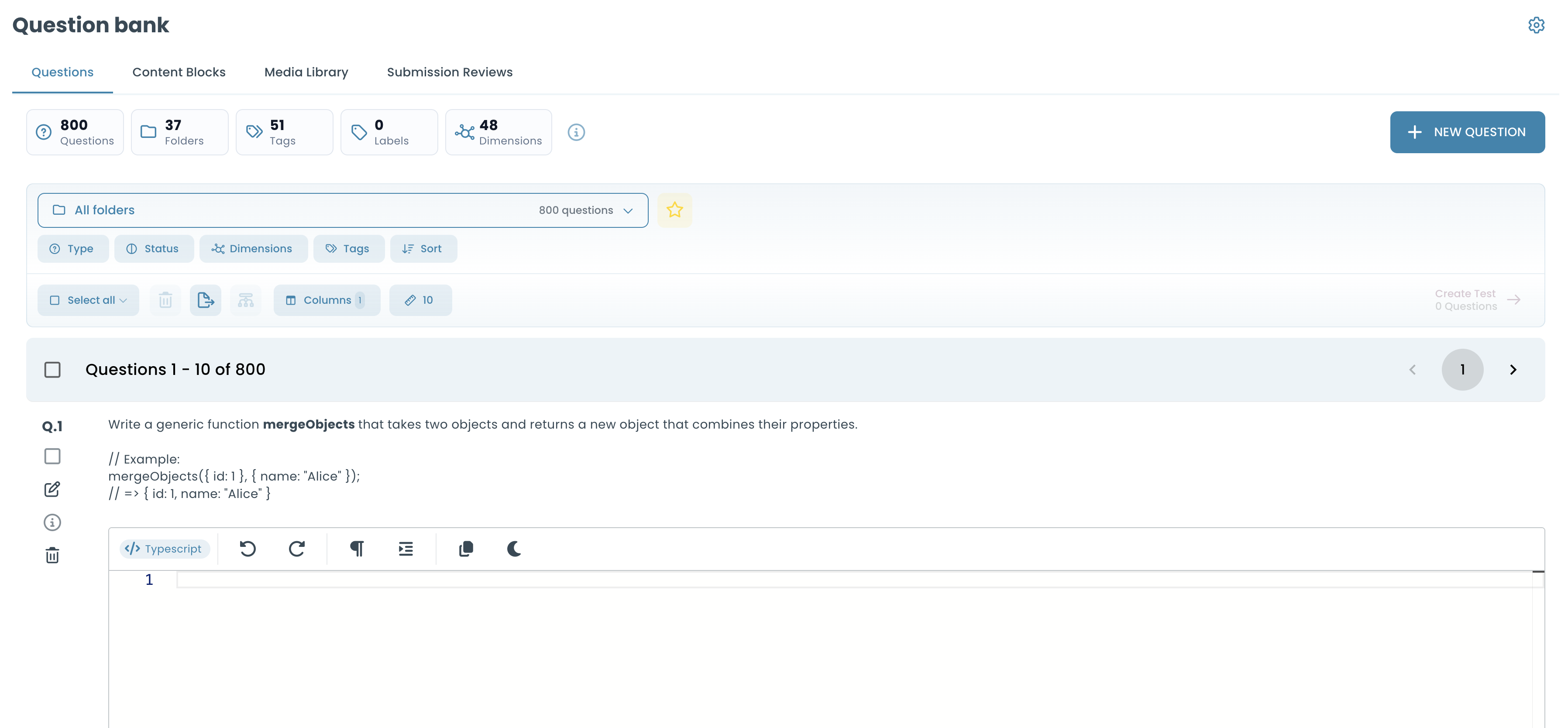
Step 2: Click New Question
Click the New Question button. A question type selector appears. Choose the type that suits your assessment need — see Question Types for a full overview of all available types and when to use each.
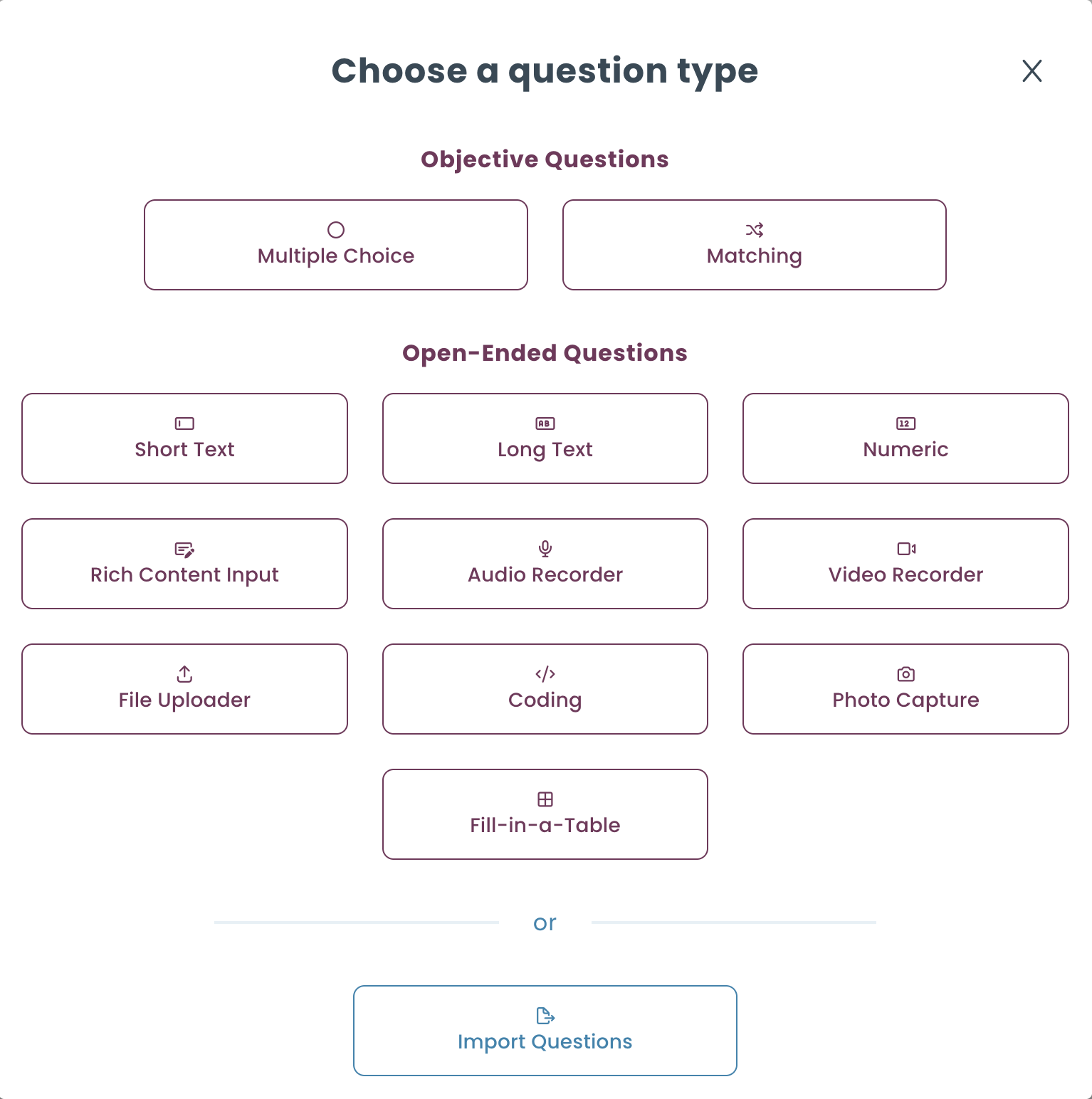
Step 3: Write the Question
The question editor opens. Every editor starts with the question prompt — the content shown to the candidate. Write it using the rich content editor, which supports text formatting, images, tables, code blocks, mathematical expressions, and more. See Content Editor for everything the editor supports.
Below the prompt, the type-specific area appears — choices for Multiple Choice, a matching interface for Match, input settings for text and numeric types, and so on. Configure the type-specific settings as needed.
Step 4: Configure Scoring
Set the question’s point value using the positive multiplier. Optionally add a negative multiplier for wrong answers and assign dimensions to track competency scores. See Point Scoring and Associated Dimensions.
Step 5: Add Optional Features
Before saving, consider adding:
- Hint — guidance candidates can reveal during the test
- Answer Explanations — feedback shown after submission
- Rubric — for structured manual evaluation (input question types)
- AI Evaluation — for automatic scoring of open-ended responses
Step 6: Assign Folder and Tags
When you save, the editor prompts you to assign a folder and tags. This is how the question is stored and organized in the bank. Choose a folder that reflects the question’s topic or category, and add relevant tags. If your organization uses a Schema, the available folders and required tags are enforced here. See Question Metadata.
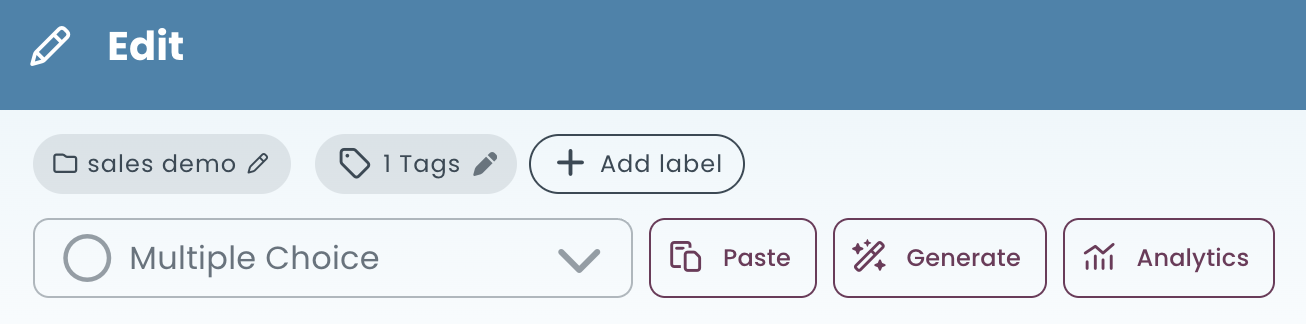
Creating Questions Inside a Test
You can also create questions directly inside the test editor without navigating to the Question Bank first. The process is identical — the editor opens, you write the question, and on save you are prompted to assign a folder and tags. The question is saved to the Question Bank automatically and simultaneously added to the test page you are editing.