

In Test Resources
Add and manage resources such as images and content for candidates during the test.
Defines additional materials available during the test.
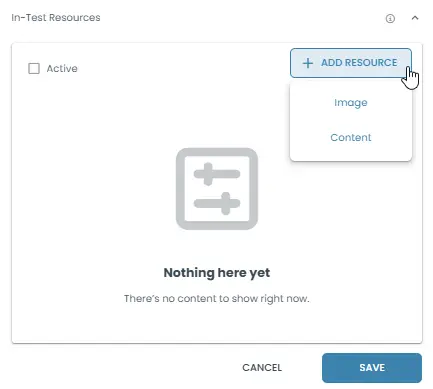
1. Active
Enables in-test resources.
Example: Materials such as images, text content, or reference information can be used during the test.
Result: Resources become visible in the test interface.
2. Resource Types
Defines which resource type is used in the test.
Example: Select an image or content block.
Result: The selected resource is shown during the test.
2.1. Image
Uses visual resources such as diagrams, charts, or reference images.
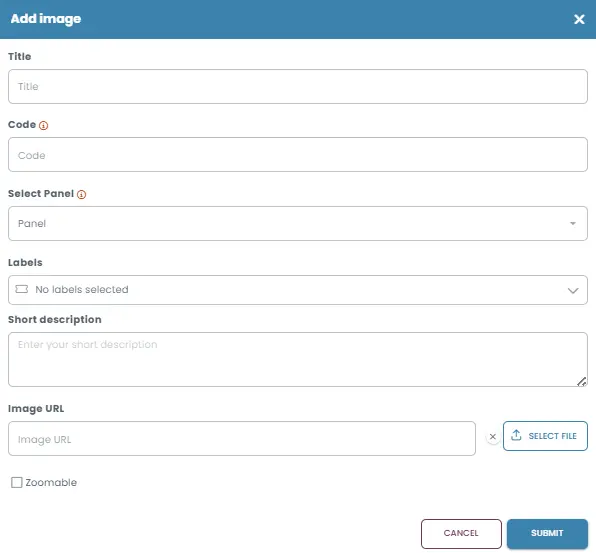
Add Image
When you click Add image, a configuration panel opens where you can upload and define how the image will appear inside the test.
You can:
Title → Give a name to the image
Code → Assign a reference code (used for identification or logic)
Select Panel → Choose where the image will be displayed
Labels → Add labels for organization or filtering
Short description → Provide a brief explanation of the image
Image URL / File upload → Upload or link the image
Zoomable → Allow candidates to enlarge the image during the test
This allows you to control how visual content is presented and managed within the test.
2.2. Content
Uses text-based resources such as instructions, formulas, or reference notes.
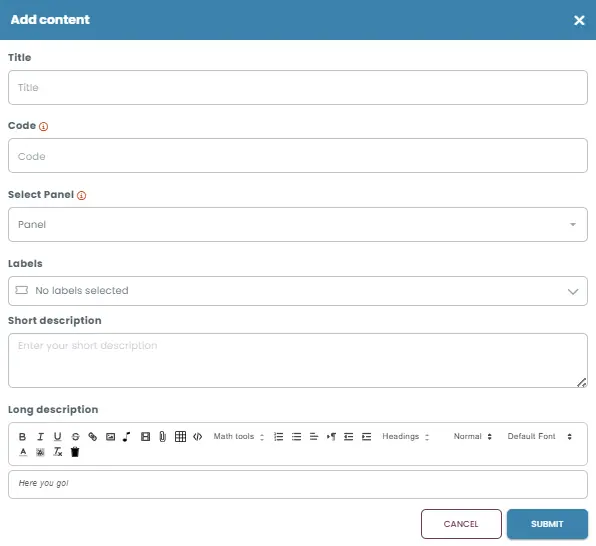
This feature works the same as adding an image, but instead of uploading a visual, you can directly create content using text.