

Getting started Product Tour Question Bank Question Types Test Editor Grading and Evaluation Lockdown Browser Online Proctoring
Organization management Setting Up Your Organization General Settings Configuring Consent Process Branding Plans & Credits Understanding Subscription Plans Managing Credits Changing Subscription Plans Billing Settings Credit Notifications Users and Collaboration Roles and Permissions Adding New Users & Assigning Roles Importing Users Organizing Users into Teams Advanced Permissions & Access Control User Login Controls Monetization
Question Bank Creating a Question Adding Image Adding Audio Adding Video Adding File Editing Layout Adding Feedback Adding Hint Math Input Importing Questions Question Reporting Scoring Question Types Multiple Choice Questions Matching Questions Text-Based Questions Rich Content Questions Numeric Questions Coding Questions Audio Recording Video Recording Photo Capture File Upload Fill-in-a-Table Questions Organizing Questions Folders and tags Batch update Schema Browsing Questions Exporting Questions Presets Composites
Tests (deprecated) Creating a Test Pages Sections Adding Questions Previewing Test Setting Profile Test Type Test Navigation Time-Limits Auto Numberings Mandatory Question Security Shuffling Deprecated Customize Section Weights Randomization Reporting
Tests Creating a New Test Test Settings Quick Exam Creation Creating Randomized Tests Adding Questions Sections Automatic Question Exclusion Shuffling Pages Time Limit Navigation Control Section Introduction Page Structure Shuffle Questions Time Limit Layout
Tests Adding Questions

Creating a New Question

Create Question allows you to add new questions directly to your test without using the Question Bank.

Published 2026/04/16

Create a new question directly within the test page. You can define the question type, add content, and configure its settings.
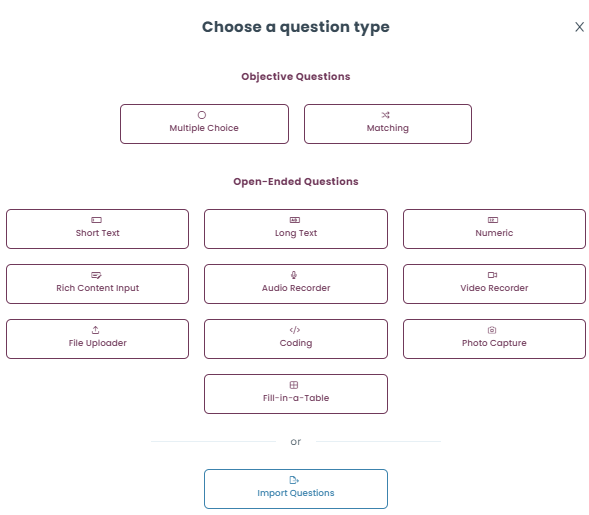
Create a new question by selecting a question type. The creation process is identical to creating a question outside the test area, with the same options and settings.

Available Question Types

Objective Questions

   Multiple Choice

   Candidates select one or more correct answers from given options.

   Matching

   Candidates match items from two lists. 

 Open-Ended Questions

   Short Text

   Candidates provide brief written answers.

   Long Text

   Candidates write detailed, paragraph-length responses.

   Numeric

   Candidates enter a number as the answer.

   Rich Content Input

   Candidates respond using formatted text, media, or structured input.

   Audio Recorder

   Candidates record and submit an audio response.

   Video Recorder

   Candidates record and submit a video response.

   File Uploader

   Candidates upload files as their answer.

   Coding

   Candidates write and submit code.

   Photo Capture

   Candidates take and upload a photo.

   Fill-in-a-Table

   Candidates complete a table-based response.

Additional Option

   Import Questions

   Import existing questions instead of creating a new one.

Example:

You choose “Multiple Choice,” enter the question and options, and save it.

Result:

The question is added to your test page and behaves exactly like any question created outside the test area.

Use case

Use this feature to quickly create and insert any type of question while building your test, without leaving the test page.

Go back