

Getting started Product Tour Question Bank Question Types Test Editor Grading and Evaluation Lockdown Browser Online Proctoring
Organization management Setting Up Your Organization General Settings Configuring Consent Process Branding Plans & Credits Understanding Subscription Plans Managing Credits Changing Subscription Plans Billing Settings Credit Notifications Users and Collaboration Roles and Permissions Adding New Users & Assigning Roles Importing Users Organizing Users into Teams Advanced Permissions & Access Control User Login Controls Monetization
Question Bank Creating a Question Adding Image Adding Audio Adding Video Adding File Editing Layout Adding Feedback Adding Hint Math Input Importing Questions Question Reporting Scoring Question Types Multiple Choice Questions Matching Questions Text-Based Questions Rich Content Questions Numeric Questions Coding Questions Audio Recording Video Recording Photo Capture File Upload Fill-in-a-Table Questions Organizing Questions Folders and tags Batch update Schema Browsing Questions Exporting Questions Presets Composites
Tests (deprecated) Creating a Test Pages Sections Adding Questions Previewing Test Setting Profile Test Type Test Navigation Time-Limits Auto Numberings Mandatory Question Security Shuffling Deprecated Customize Section Weights Randomization Reporting
Tests Creating a New Test Test Settings Quick Exam Creation Creating Randomized Tests Adding Questions Sections Automatic Question Exclusion Shuffling Pages Time Limit Navigation Control Section Introduction Page Structure Shuffle Questions Time Limit Layout
Tests Adding Questions

Adding Questions from Question Bank

Question Bank allows you to choose from previously created questions and add them directly to your test.

Published 2026/04/16

Select and add existing questions from your Question Bank. This helps you reuse questions without creating them again.

How it works

- Browse or search your Question Bank

- Select one or multiple questions

- Add them directly to your test page
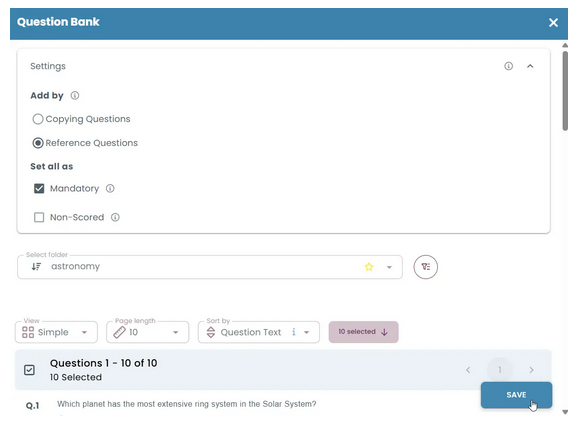
Select questions from the Question Bank and add them to the page.

Add by

Defines how questions are added:

- Copying Questions → Creates an independent copy. Changes made later do not affect the original question or other usages.

- Reference Questions → Uses the same question across different places. Any update to the original question is reflected everywhere it is used.

Set all as

Applies properties to all selected questions:

- Mandatory → Candidates must answer the question before continuing. It cannot be skipped.

- Non-Scored → The question is shown but does not contribute to the score. Useful for practice or survey-type questions.
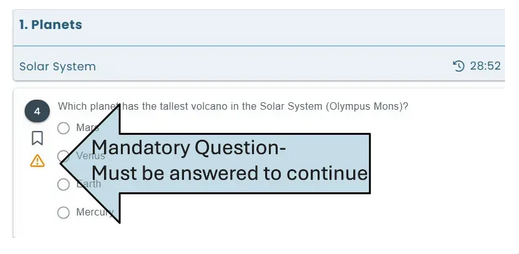
Mandatory questions are marked with a warning icon and must be answered. Candidates cannot skip the page until all required questions are completed.

Select folder

Choose a folder to load and browse questions.

Question list

Select one, multiple, or all questions to add.

Save

Adds the selected questions to the page.

Go back