

Adding a Content
Content lets you include non-question elements such as text, images, or media to guide candidates and provide additional context.
Add a content block to your page without creating a question. You can include text, images, videos, or other media.
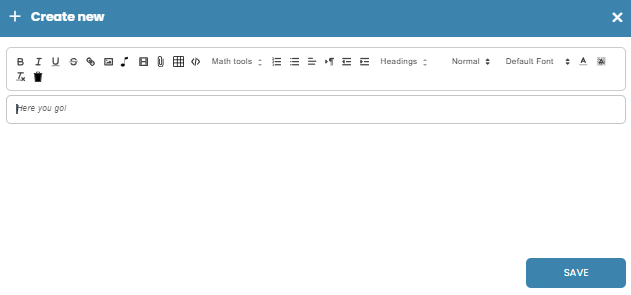
Example:
You add a content block with instructions and include an image or video explaining the task.
Result:
Candidates see the content along with any media, helping them better understand the context before answering questions.
Use case
Use content blocks to give instructions, add visuals, embed videos, or separate sections within your test.
Editor Features Overview
Text Formatting (B, I, U, S)
Make text bold, italic, underlined, or strikethrough.
Text Style & Clear Formatting (Tx)
Apply text styles or remove existing formatting.
Insert Media (Image, Video, Link)
Add images, embed videos, or insert links into your content.
Table
Insert tables to organize information in rows and columns.
Math Tools
Add mathematical expressions or formulas.
Lists & Alignment
Create bullet/numbered lists and align text (left, center, right).
Headings
Structure content using headings (titles, subtitles).
Font Settings
Change font type, size, and appearance.
Text Area
Main space where you write and edit your content.
Save Button
Save and apply the content to your page.