
- What is TestInvite?
- Build Your First Test
- Run Your First Assessment
- Taking the Assessment
- Viewing the Results
- Question Bank Overview
- Common Question Features
- Scoring
- Question Types
- Question Authoring
- Browsing Questions
- Content Blocks
- Media Library
- Metadata Rules & Schema
- Tests Overview
- My Tests
- Creating a Test
- The Test Editor
- Test Settings
- Sections & Pages
- Adding Questions
- Page Builders
- Test Profile
- Reporting
- Test Papers
- Analytics
- Publishing a Test
- Test Library
- Marketplace
- Tasks Overview
- Creating a Task
- Task Dashboard
- Steps
- Task Settings
- Candidates
- Test Sessions
- Sent Mails
- Proctoring
- Analytics
- Analytics Overview
- Test Analytics
- Question Analytics
- Per-Question Analytics
- Results Explorer
- Segment Analysis
Tables
Create structured tables in question content, format individual cells, add headers and captions, merge or split cells, and preview the result before inserting it.
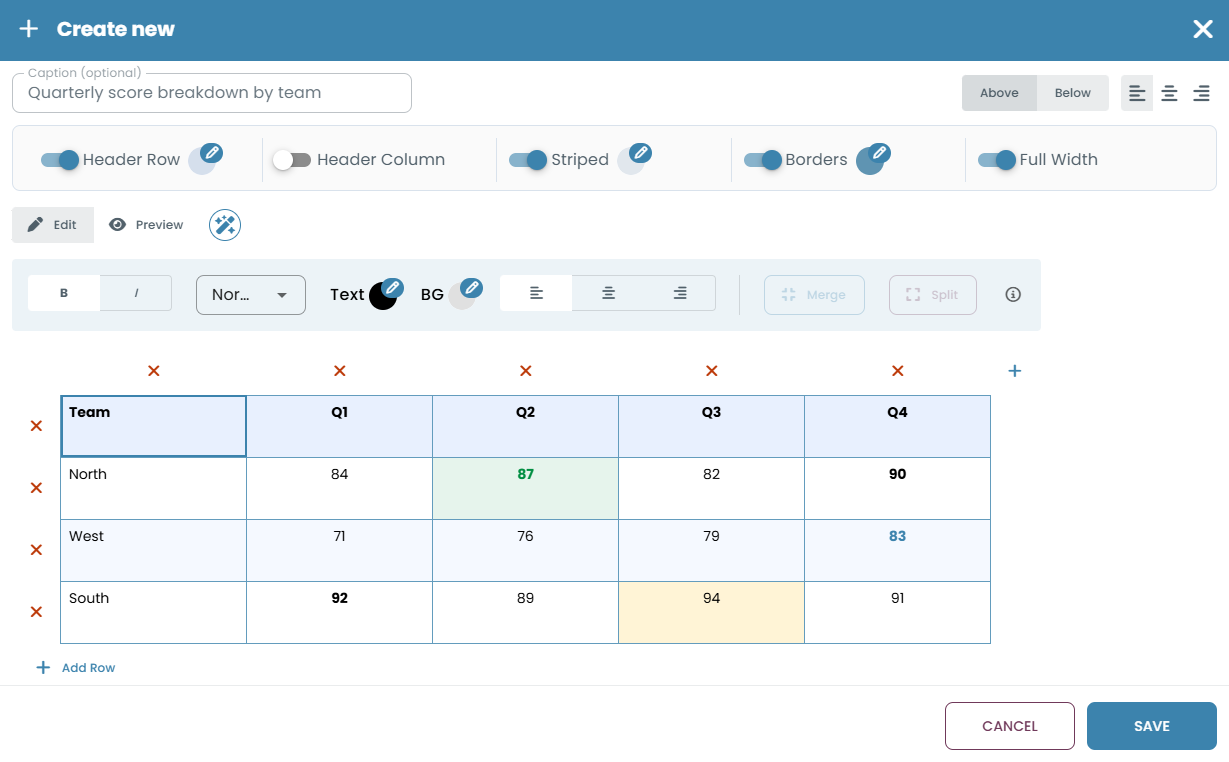
Use the table button in the content editor toolbar to create and format a structured table without writing HTML. You can add or remove rows and columns, configure the table’s appearance, style individual cells, and preview the result before inserting it into the question content.
Creating a table
- Click the table button in the content editor toolbar.
- Add or remove rows and columns using the controls around the table.
- Enter content into the cells and apply any required formatting.
- Add an optional caption and configure the table options.
- Use Preview to check the result, then click Save to insert the table.
Table options
Configure the overall appearance of the table:
Caption — add an optional caption and choose its position and alignment.
Header Row — format the first row as a header.
Header Column — format the first column as a header.
Striped — apply alternating backgrounds to the table rows.
Borders — show and customize the table borders.
Full Width — expand the table to the available content width.
Cell formatting
Select a cell to configure its content and appearance. You can apply text formatting, change text and background colors, adjust alignment, and merge or split cells.
Editing an existing table
Click an existing table in the content editor to reopen the table editor. You can update its content, structure, formatting, caption, and display options without changing its position in the question content.
Typical use cases
- Comparison questions — present two or more options side by side for the candidate to evaluate.
- Data interpretation — a table of figures the candidate must read and answer questions about.
- Structured reference — a timetable, pricing matrix, or lookup table used as part of a scenario.