
- What is TestInvite?
- Build Your First Test
- Run Your First Assessment
- Taking the Assessment
- Viewing the Results
- Question Bank Overview
- Common Question Features
- Scoring
- Question Types
- Question Authoring
- Browsing Questions
- Content Blocks
- Media Library
- Metadata Rules & Schema
- Tests Overview
- My Tests
- Creating a Test
- The Test Editor
- Test Settings
- Sections & Pages
- Adding Questions
- Page Builders
- Test Profile
- Reporting
- Test Papers
- Analytics
- Publishing a Test
- Test Library
- Marketplace
- Tasks Overview
- Creating a Task
- Task Dashboard
- Steps
- Task Settings
- Candidates
- Test Sessions
- Sent Mails
- Proctoring
- Analytics
- Analytics Overview
- Test Analytics
- Question Analytics
- Per-Question Analytics
- Results Explorer
- Segment Analysis
Audio Clips
Embed a playable audio clip in the question content by uploading a file, entering a URL, reusing a previous clip, or selecting one from the Media Library. Configure how candidates can control and replay the audio.
Click the audio button in the toolbar to embed a playable audio clip in the question prompt. Candidates hear the clip inline without leaving the question.
Adding an audio clip
- Upload — upload an audio file directly from your device. Common formats: MP3, WAV, OGG, M4A.
- Media Library — pick an audio file already stored in the Media Library. A history list shows audio you have previously embedded.
- URL — enter a direct URL to an externally hosted audio file.
After uploading a new file, you can preview it, update its name, assign it to a Media Library folder, and add labels before inserting it into the content.
Playback controls
Configure how candidates can interact with the audio clip:
Allow pause — lets candidates pause and resume playback.
Allow going forward-backward — lets candidates move backward or forward within the recording.
Play Limit — limits how many times candidates can play the audio, or allows unlimited playback.
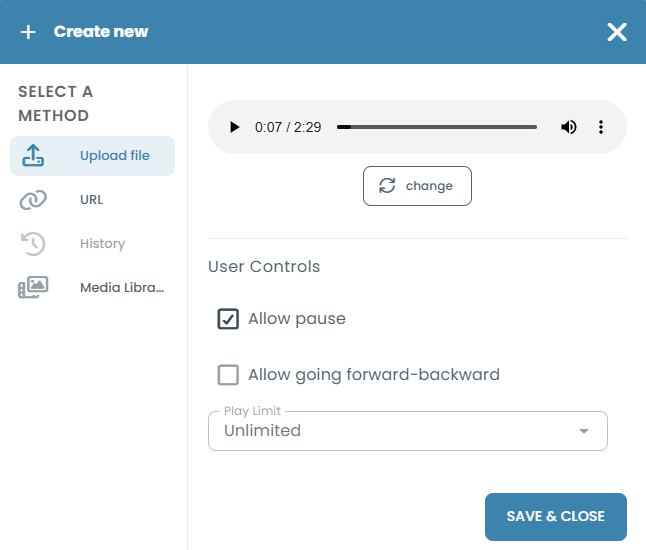
Editing an existing audio clip
Click the audio player in the editor to open its edit dialog. You can replace the file or update any settings. The clip's position in the content is preserved.
Typical use cases
- Language listening tests — a spoken passage the candidate must answer questions about.
- Pronunciation assessment — a reference recording the candidate listens to, then mimics.
- Music or sound identification — asking candidates to identify a piece or describe what they hear.