
How to Create an Online Exam
Lesson objective
Follow a step-by-step process to create an online exam, from planning structure and adding questions to configuring timing, security, scoring, and publishing.
What is an Online Exam?
An online exam is a web-based assessment used to measure knowledge, skills, or qualifications. Delivered through dedicated software, it supports diverse question types, automated scoring, remote access, and built-in tools for timing and security. Online exams offer a flexible and scalable way to assess individuals anytime, anywhere.
With TestInvite’s intuitive platform, you can design and deliver structured, secure online exams tailored to your goals. This step-by-step guide will walk you through creating your own exam from the ground up.
Key Takeaways
- Start by defining a clear structure with sections and pages.
- Use diverse question types suited to the skills being assessed.
- Apply time and navigation controls to guide the candidate experience.
- Secure your exam with proctoring, recording, and lockdown tools.
- Choose appropriate evaluation methods including auto-scoring, manual review, rubrics, or AI.
- Preview before publishing to ensure everything works as intended.
What Matters When Creating an Online Exam?
Creating an effective online exam requires more than adding questions. Consider the following key factors:
- Clarity: Ensure instructions and questions are clearly written and free from ambiguity.
- Question type: Choose the most suitable question format for each skill or competency being measured. Use multiple choice for quick knowledge checks, open-ended formats for critical thinking, coding tasks for technical skills, or voice recordings for speaking assessments.
- Alignment: Make sure questions align with your learning objectives or assessment goals.
- Balance: Include a mix of question types and difficulty levels to fairly evaluate all candidates.
- Accessibility: Design for all devices and accommodate diverse needs where possible.
- Security: Apply the right level of protection based on stakes and context.
- Feedback: Decide when and how feedback will be provided.
- Analytics: Use tagging and dimensions to gather meaningful performance insights.
Planning with these considerations in mind will improve the reliability, fairness, and usefulness of your exam results.
1. Start with the Structure
Creating an online exam doesn’t require a long checklist as TestInvite simplifies the process:
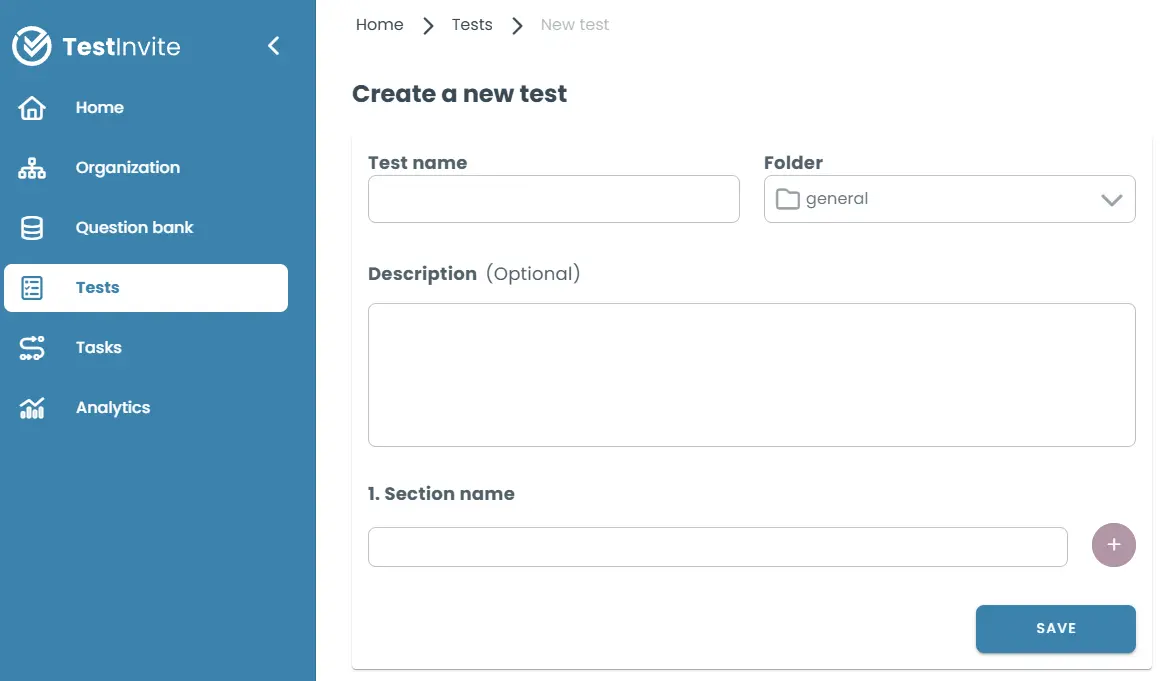
Go to the Tests module and click + New Test. Give your test a name and, if needed, a description.
Add sections to organize your content. The first one and its first page are auto-generated to get you started right away.
2. Add Questions Your Way
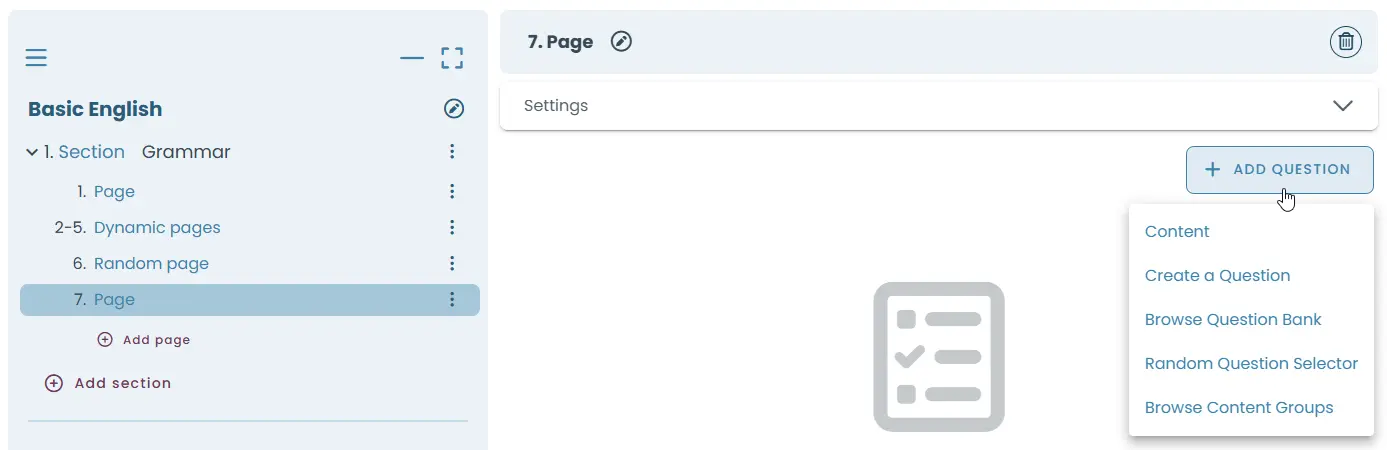
Inside any page, questions can be added in various ways such as being manually created using the rich editor with support for text, images, math, audio, and video; imported from the Question Bank or in bulk through structured Excel templates; or generated quickly using the Quick Question Creation tool for fast, plain-text input.
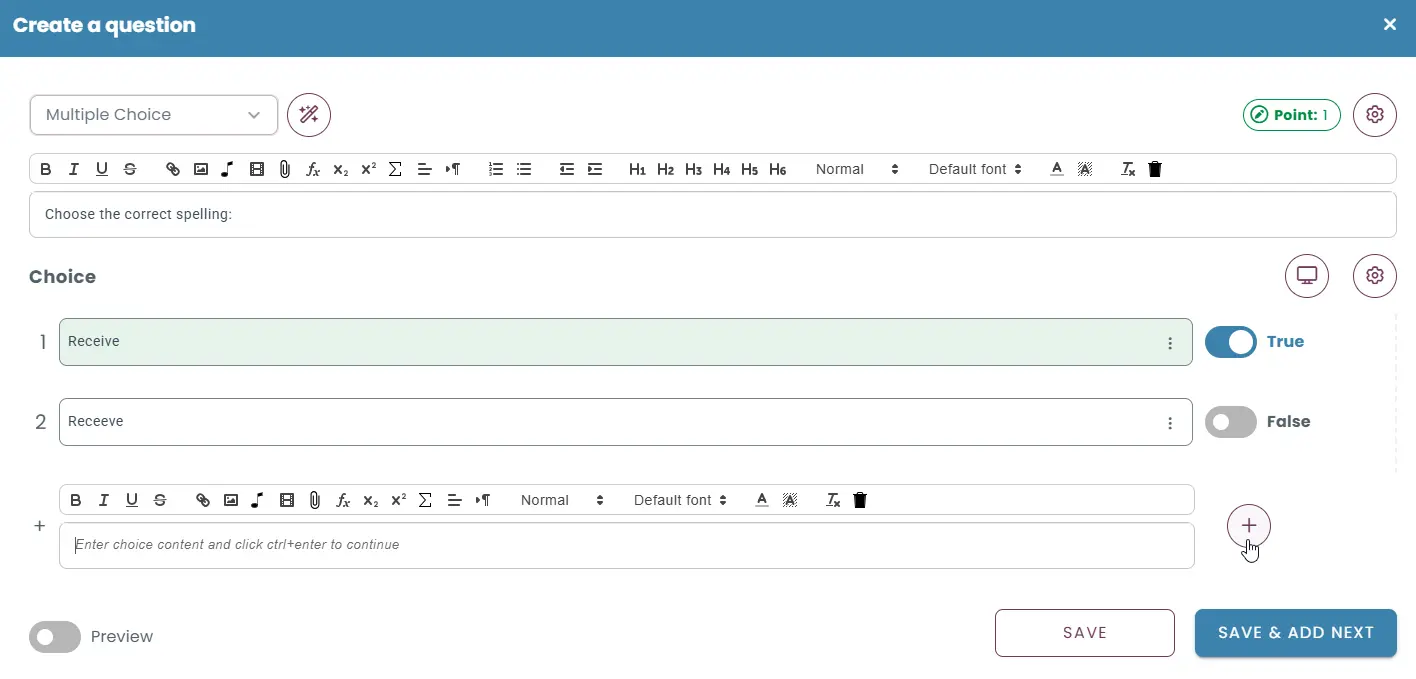
Each question and option can be customized—formatted, media-rich, scored, and more. You can set the question type, minimum and maximum selections, shuffle answer order, and even assign weighted scoring.
3. Set Up the Layout: Sections and Pages
Structure with Sections
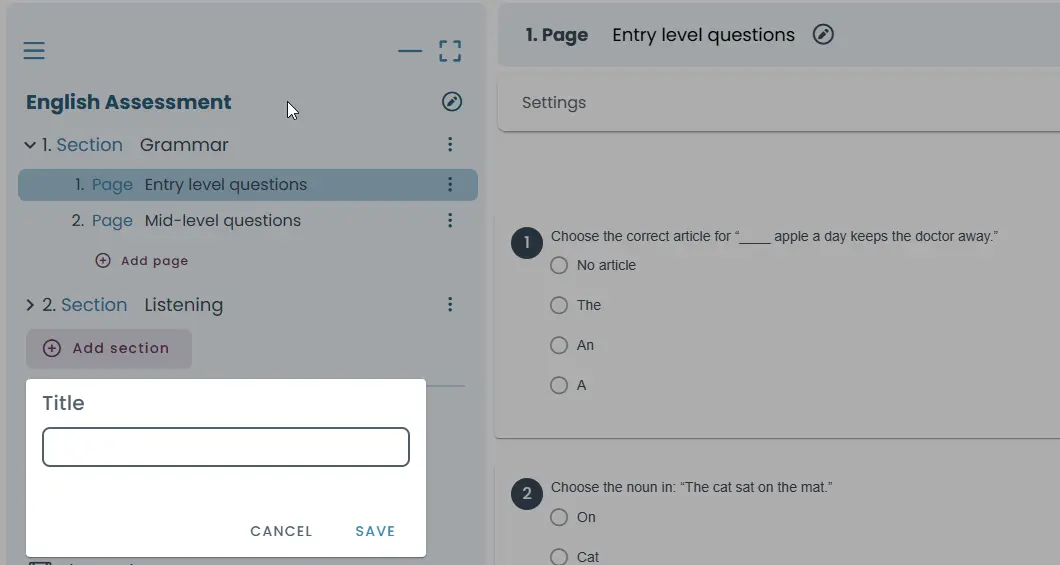
You can organize your exam by topic, skill, or task type. Use Sections to group pages and help manage pacing or scoring logicUse sections to group content logically within your test structure. You can add instructional content before pages to provide context, shuffle section order to deliver a randomized experience for each test-taker, and apply specific time constraints to each section to manage pacing and focus.
Organize using Pages
Choose from:
- New Page: Manually add a page with full creative freedom
- Dynamic Page Builder: Pull random questions from a pool
- Random Page Picker: Randomize full pages
- Static Page Builder: Fixed question sets
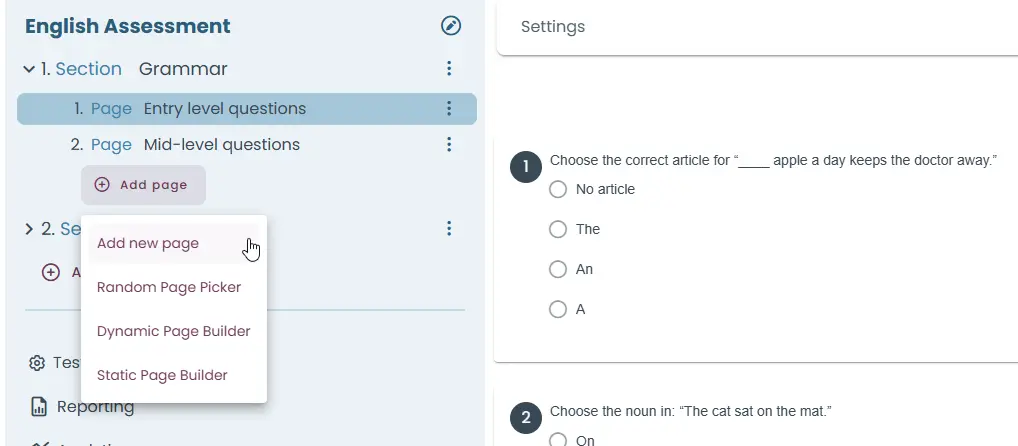
You can also apply individual settings (time limits, navigation rules, etc.) to each section or page for full customization.
3. Apply Time and Navigation Controls
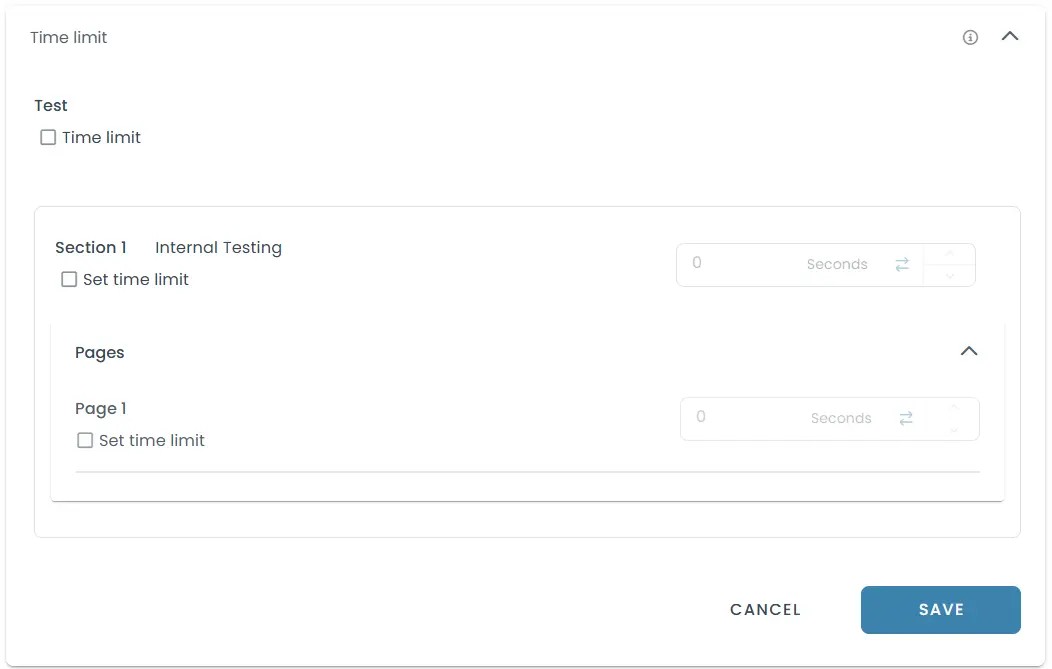
Control the pacing and flow of your exam by setting time limits and navigation rules. With TestInvite, you can apply timers at multiple levels:
- Test-Level Timer: Set a total duration for the entire exam.
- Section-Level Timer: Assign different time limits to each section based on content type or difficulty.
- Page-Level Timer: Enforce strict timing on individual pages for tasks like timed questions or challenges.
Timers are visible to candidates and automatically lock test parts when time runs out.
Additionally, you can define navigation rules to shape the test experience:
- Forward-only navigation: Prevents going back to previous pages.
- Backtracking allowed: Lets candidates review and revise earlier answers.
- Locked sections/pages: Configure when content becomes accessible or restricted.
These settings help ensure fair, consistent, and controlled test conditions for all participants.
5. Set Up Security Features
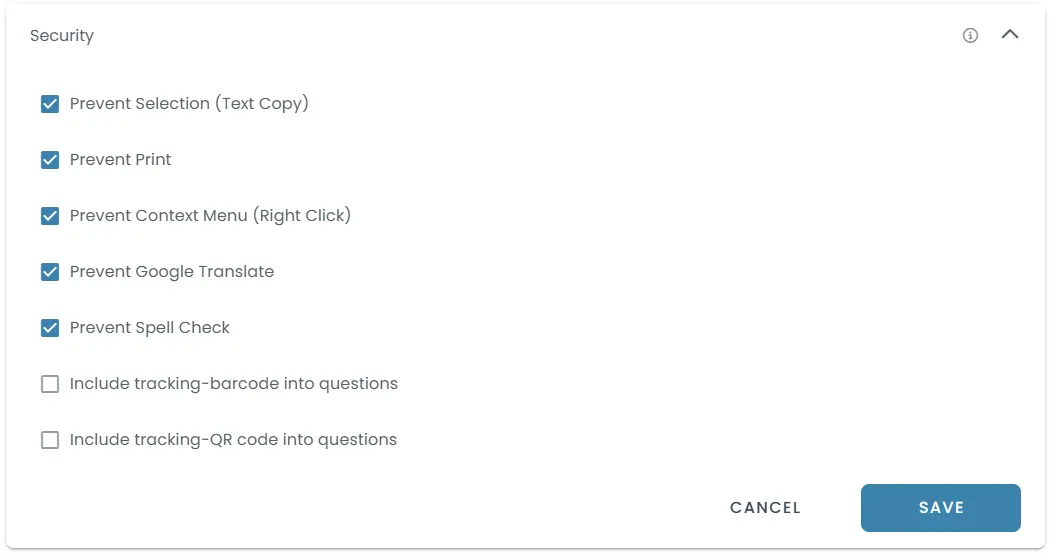
Ensure exam integrity with built-in anti-cheating controls:
- Lockdown Browser: Blocks access to external apps or tabs.
- Webcam & Screen Recording: Monitor test-taker activity.
- AI Proctoring: Detect suspicious behavior automatically.
- Disable Assistance: Prevent printing, text copy/paste, Google Translate, and spell check.
6. Configure Evaluation and Scoring
Choose how each question or section will be evaluated:
- Auto-Scoring: For multiple choice, numeric, or rule-based text inputs.
- Manual Review: Score subjective answers manually.
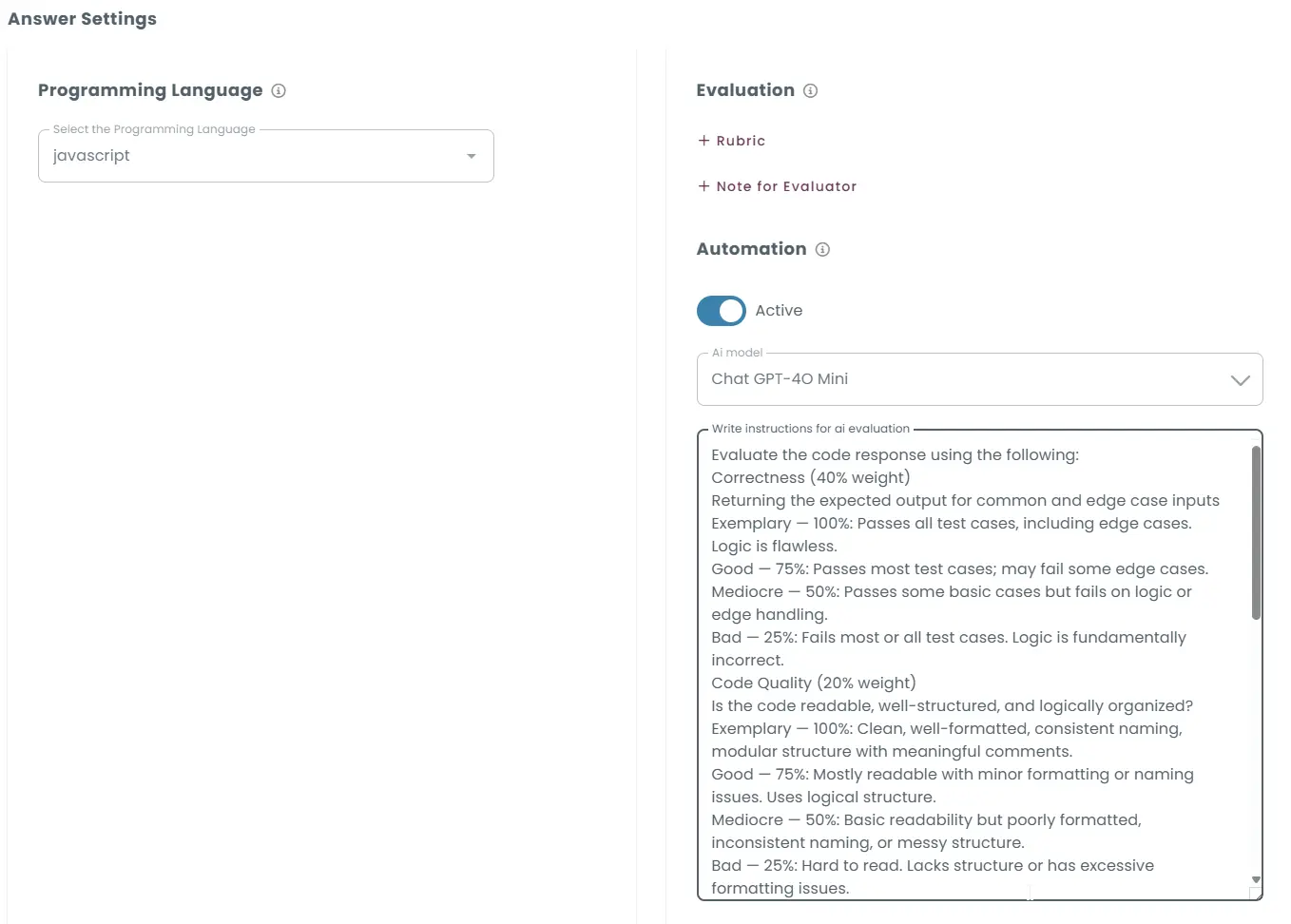
- Rubric-Based Scoring: Use custom criteria for writing, speaking, and coding.
- AI Evaluation: Enable automated grading and feedback for essays or code.
You can also:
- Assign weights to questions
- Set scoring thresholds and penalties
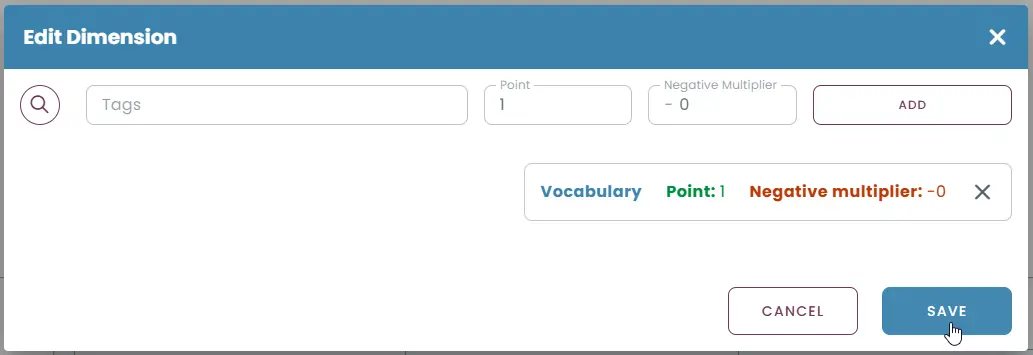
- Use dimension tagging to report performance by topic or skill
7. Preview and Finalize
Use Preview Mode to simulate the candidate experience:
- Review layout and navigation
- Check scoring logic
- Verify content and timer functionality
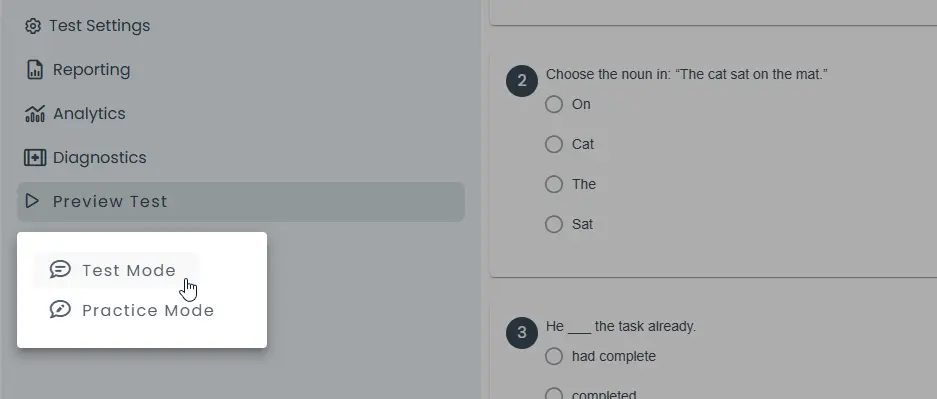
Once you’ve finished previewing your test, it’s ready to be added to a task and delivered to participants.
Scalable, Secure, and Ready for Any Challenge
With TestInvite, your exams go beyond basic assessments—they become robust tools for insight and decision-making:
- Deliver high-stakes exams with advanced security and proctoring
- Enable skill-based evaluations with flexible question formats
- Monitor progress and performance with multi-dimensional reports
Whether you're assessing students, screening candidates, or evaluating employees, TestInvite provides the tools to create, deliver, and scale online exams with confidence and control.