
Safe Assessment Browser
Protect online exams with a browser-based safe assessment browser.
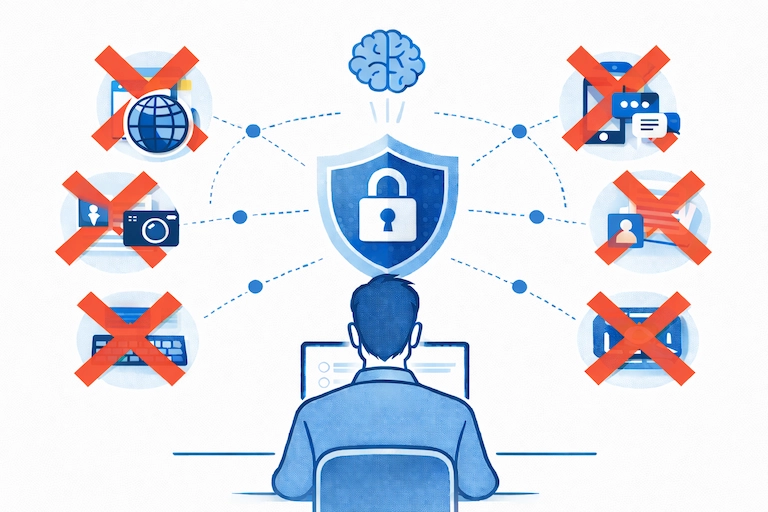
A safe assessment browser, also known as a lockdown browser, is a secure testing environment that locks down the candidate’s device during an online exam to prevent access to unauthorized resources, applications, or tools. It restricts actions such as opening new tabs, switching applications, copying content, taking screenshots, or using communication software.
Unlike traditional lockdown browsers that require software installation, TestInvite delivers all lockdown controls directly through the browser. No downloads, plugins, or system-level installations needed.
Browser-Based Lockdown
TestInvite’s browser-based lockdown runs entirely within the browser, requiring no installation. Candidates can start exams instantly without dealing with admin permissions, device restrictions, or compatibility issues.
Because nothing is installed on the device, there are no version conflicts, update failures, or privacy concerns associated with third-party software. The system works consistently across operating systems, reduces IT support needs, and scales easily for high-volume exams.
Fullscreen Enforcement
A secure testing browser automatically forces itself into fullscreen mode and continuously monitors whether the candidate remains within this environment. If the candidate tries to exit fullscreen, the system immediately displays a warning, and can automatically close or terminate the exam.
Disable Opening New Tabs & Browsers
The browser lockdown prevents candidates from opening new tabs or windows within the active browser session. The system detects when a candidate attempts to access another browser or navigate outside the secure exam window.
Disable Opening Other Applications & External Devices
The lockdown browser restricts candidates from opening other applications during the exam session. The system detects attempts to switch to external tools such as messaging apps, screen-sharing software or additional connected devices.
Block Browser Auto-Translate
Built-in browser translation features such as Chrome’s “Translate this page” option are disabled during the exam. The system prevents automatic translation prompts and detects attempts to activate page-level translation. This ensures that exam content remains in its original language and cannot be transformed or interpreted through browser-integrated translation tools.
Disable Text Selection
Selecting or highlighting text within the exam interface is disabled to prevent content from being copied, extracted, or transferred to external tools. The secure exam browser detects attempts to interact with exam text, ensuring that question content remains contained within the secure environment.
Block Copy/Paste
Copying and pasting content from the exam interface is disabled. The system detects attempted clipboard interactions, ensuring that exam material cannot be extracted, transferred, or moved into external tools.
Disable Right-Click
Right-click functionality is disabled throughout the exam interface, preventing access to browser menus, developer tools, or context actions that could expose, extract, or manipulate exam content. The system detects attempts to use context-menu interactions, ensuring the test environment remains secure and controlled.
Disable Print
Printing options are disabled during the exam. The system detects attempts to trigger print actions, ensuring that exam content cannot be exported, saved, or distributed outside the testing environment.
Logging Bowser Activities
The system continuously logs browser interactions and records detailed contextual information whenever lockdown integrity is disrupted. Each event is captured together with the exact moment it occurred, the question the candidate was viewing, and the on-screen context at that time.
This provides a clear audit trail that allows administrators to understand not only what action happened, but also under which circumstances. For example, a lockdown break occurring while the candidate was on an unanswered question or during a correct response. These contextual logs help reconstruct the exam atmosphere and support accurate post-exam evaluation.
Violation Settings
Violation settings allow you to define thresholds for how lockdown violations are measured and when the exam should be stopped. Each rule controls a different aspect of violation tracking:
- Limit number of violations: Set the maximum number of violation events allowed before the exam is terminated.
- Limit seconds per violation: Define how long a single violation can last. Any violation exceeding this duration counts as a threshold break.
- Limit total seconds of violation: Specify the maximum accumulated violation time across the entire exam session.
- Limit seconds when selecting a file: Allow a limited window for file-selection actions (such as uploading a document) without counting it as a violation beyond the threshold.
- Limit seconds when asking for media permission: Control how long candidates can remain on OS-level permission prompts (camera/microphone access) before it is considered a violation.
Auto Resuming
In high-volume exams or unstable internet conditions, candidates may get disconnected. With auto-resuming enabled, the exam does not immediately terminate if the candidate is disconnected. The candidate can reconnect within a defined time window. Once reconnected, the exam continues from where it was interrupted.
Administrators define:
- The allowed reconnection window (e.g., 60 seconds, 2 minutes, 5 minutes).
- The maximum number of reconnection attempts can be configured.
Auto Flagging
With auto-flagging, candidates are not removed from the exam. Instead, the system silently flags suspicious activity in the background.
- Administrators define violation thresholds (e.g., flag if behavior lasts 5, 10, or 30 seconds).
- When the threshold is exceeded, the system generates an automatic flag.
- Candidates are not notified about flags during the exam.
- All flagged events are recorded with timestamps.
Questions for this stop
A safe exam browser can only detect devices that are directly connected to the computer running the exam. If a device is not physically or electronically linked to the exam computer, the Safe Exam Browser cannot detect it.
No, a safe exam browser does not record the screen. Its purpose is to restrict device functionality, not to capture screen content. If screen recording is required, it must be enabled through a separate proctoring feature, not through the lockdown browser itself.
Yes, proctored exams can detect screen sharing. A human proctor can easily notice if you’re sharing your screen with another device or person, and AI proctoring systems that monitor screen activity can also detect suspicious displays or external connections.
No, a safe exam browser alone does not use the webcam. Webcam usage is handled by the online proctoring system, not by the lockdown browser. Lockdown controls and proctoring are separate layers of security.
No, a safe exam browser alone does not access or use the webcam. Webcam usage is handled by the online proctoring system, not by the lockdown browser. Lockdown controls and proctoring are separate layers of security.
Yes, a safe exam browser operates within a controlled environment and does not access personal files, private data, or unrelated applications. Its role is to limit actions that could compromise exam integrity, not to monitor the entire device. TestInvite’s installation-free approach further enhances safety because no software is installed on the candidate’s computer.
Traditional lockdown browsers often require candidates to install a dedicated application on their device before taking an exam. While this approach provides deep system-level control, it also introduces significant technical, operational, privacy, and trust-related risks.
These limitations make installation-based browsers increasingly unsuitable for modern, large-scale, distributed testing environments.
- Invades the candidate’s device environment: Installing a lockdown application gives the software elevated privileges. It can monitor network activity, access system processes, detect hardware configurations, and influence the way the operating system behaves. This level of control is uncomfortable for both individuals and institutions because it means allowing a third-party program to operate inside the most sensitive parts of the device.
- Security and privacy concerns (KVKK / GDPR): Since installed browsers work outside the secure confines of the web sandbox, they require permissions that may conflict with privacy regulations. Candidates often worry about what the software can see or do, whether it reads local files, monitors applications, or interacts with private data. For corporate or institutional devices, this can be a direct policy violation.
- High responsibility and legal exposure for organizations: Asking candidates to install software carries liability. If the software has a vulnerability, conflicts with the device, causes data loss, or disrupts normal system behavior, the testing organization may be held responsible. Many institutions avoid installed lockdown tools for this reason alone.
- Installation and setup issues: Version mismatches, OS conflicts, device restrictions.
Installed solutions frequently fail due to OS or hardware incompatibilities, outdated versions, antivirus/firewall blocks, insufficient permissions on corporate/school devices, broken or incomplete installations, and different installers for Windows, macOS, Linux, tablets, etc.These issues not only block exam entry but also multiply support needs.
- Heavy IT support burden: Every installation-based system generates a high volume of troubleshooting:
“Did it install?”
“Does the version match?”
“Is the OS supported?”
“Did the antivirus block it?”
For large exam populations, this quickly becomes unsustainable.
- Not suitable for shared, restricted, or managed devices:
Many candidates join from work laptops, school-managed devices, public/shared computers, company-locked machines. Installation is either not permitted or not possible, making participation impossible.
- Excessive control over the device: Installed lockdown apps can:
lock the operating system
control network traffic
detect VPNs/proxies
monitor system-level processes
check peripherals
restrict switching applications
This level of control feels intrusive and is increasingly considered unacceptable by candidates and institutions. It also drastically increases failure points.
- Inconsistent cross-platform experience: Different OS installers behave differently. Windows, macOS, and Linux versions don't work identically, require separate updates, and produce unique technical failures.
- Trust issues from candidates: Many users hesitate to install a program that controls their computer, modifies network behavior, or disables system features. This erodes confidence in the assessment process.
- Difficult to scale for large or global exams: Every installation step adds friction and increases the chance of failure. When thousands of candidates must install software, even a small error rate results in mass disruptions.
A browser-based lockdown software is built to keep the test-taker fully confined to the exam window by enforcing and supervising fullscreen mode from the moment the test begins.
1. Fullscreen Activation Sequence
- Start Event: When the candidate clicks Start Test, the system immediately instructs the browser to switch into an exclusive fullscreen environment.
- User Consent: The browser displays a native prompt asking the candidate to allow fullscreen access. The exam proceeds only after this permission is granted.
2. Continuous Monitoring and Logging
Once the test is underway, the system continuously verifies that the browser remains in a secure, focused state.
- Event Detection: JavaScript listeners watch for actions that may compromise the lockdown, including:
Leaving fullscreen mode (ESC key, OS gestures).
Loss of window focus (opening another app, clicking the taskbar, minimizing).
Attempts to open new tabs, windows, or contexts.
- Detailed Logging: Every incident is recorded with:
A timestamp,
The violation category,
How long the secure state was disrupted.
3. Enforcement Logic & Automatic Termination
When a violation occurs:
- Immediate On-Screen Alert: The candidate sees a clear warning instructing them to return to fullscreen and refocus the exam window.
- Rule Evaluation: The system compares the violation against the administrator’s configured rules (e.g., maximum number of violations, allowed duration outside fullscreen, time limits for recovery).
- Automatic Session End: If the candidate does not restore the secured state within the defined threshold, or if cumulative violation time exceeds the permitted limit—the system saves the current responses and ends the exam session.
4. Administrative Review Tools
After the session:
- Log Availability: Administrators can open a detailed activity log for the exam attempt.
- Audit Trail: The log clearly shows:
When violations occurred,
How many breaches were detected,
The total time the candidate spent outside secure mode,
Whether the exam was terminated automatically due to policy violations.
Using a lockdown browser creates a secure and fair testing environment by preventing candidates from accessing unauthorized tools, resources, or applications during an exam.
They ensure that all activity stays within the approved exam window, reducing opportunities for cheating while protecting the confidentiality of exam content.
- Preventing Access To External Resources: Stops candidates from using search engines, ChatGPT, websites, notes, or reference materials. This ensures that all answers come from the candidate’s own knowledge rather than unauthorized digital or physical sources.
- Blocking Communication Tools: Prevents the use of messaging apps, screen-sharing tools, or other communication channels to receive outside help. By eliminating these communication paths, lockdown reduces the risk of coordinated cheating or external guidance during the test.
- Protecting Exam Content: Makes it significantly harder to copy, record, or extract questions, helping organizations safeguard their assessment materials. This preserves the long-term value of question banks and prevents sensitive content from circulating online.
- Reducing Cheating Opportunities: Detects attempts to switch applications, open new browsers, break fullscreen, or bypass restrictions, creating a strong deterrent. When candidates know such actions are monitored, they are far less likely to attempt rule violations.
- Supporting High-Stakes And Remote Testing: Enables secure exams regardless of where the candidate is located, without requiring a physical test center or human proctor. This makes remote assessments feasible even for certifications, placement exams, recruitment tests, and other critical evaluations.
- Maintaining Focus And Consistency: Ensures every candidate takes the exam under the same controlled conditions, eliminating unfair advantages. This creates a standardized testing experience where differences in environment or device capabilities do not affect performance.