
How to reinstate a test session?
Reinstate a completed test session to give a candidate more time by reopening it from the Exam Monitor's Operations menu.
If a candidate's test session has already completed but you want to give them another chance — for example, more time to finish, or another attempt at unanswered pages — you can reinstate it. Reinstating reopens a completed session so the candidate can resume it. This is only available for test sessions with a status of Complete — an ongoing session must be ended first.
There are two ways to open the Reinstate dialog:
Option 1: From the Test Sessions table
1) Go to Task from the menu on the left side and open the relevant task.
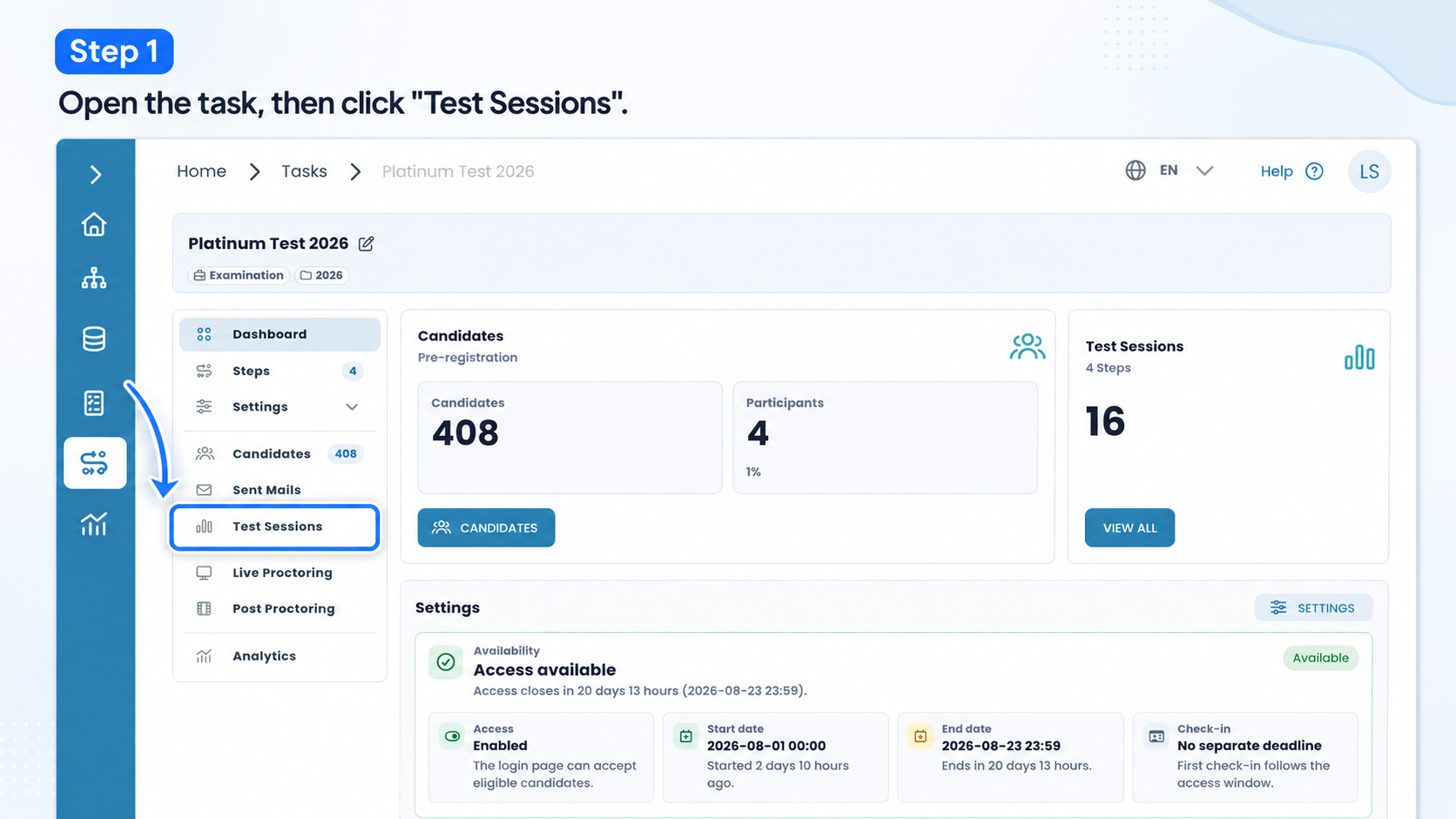
2) Open the Test Sessions tab and find the completed test session you want to reinstate.
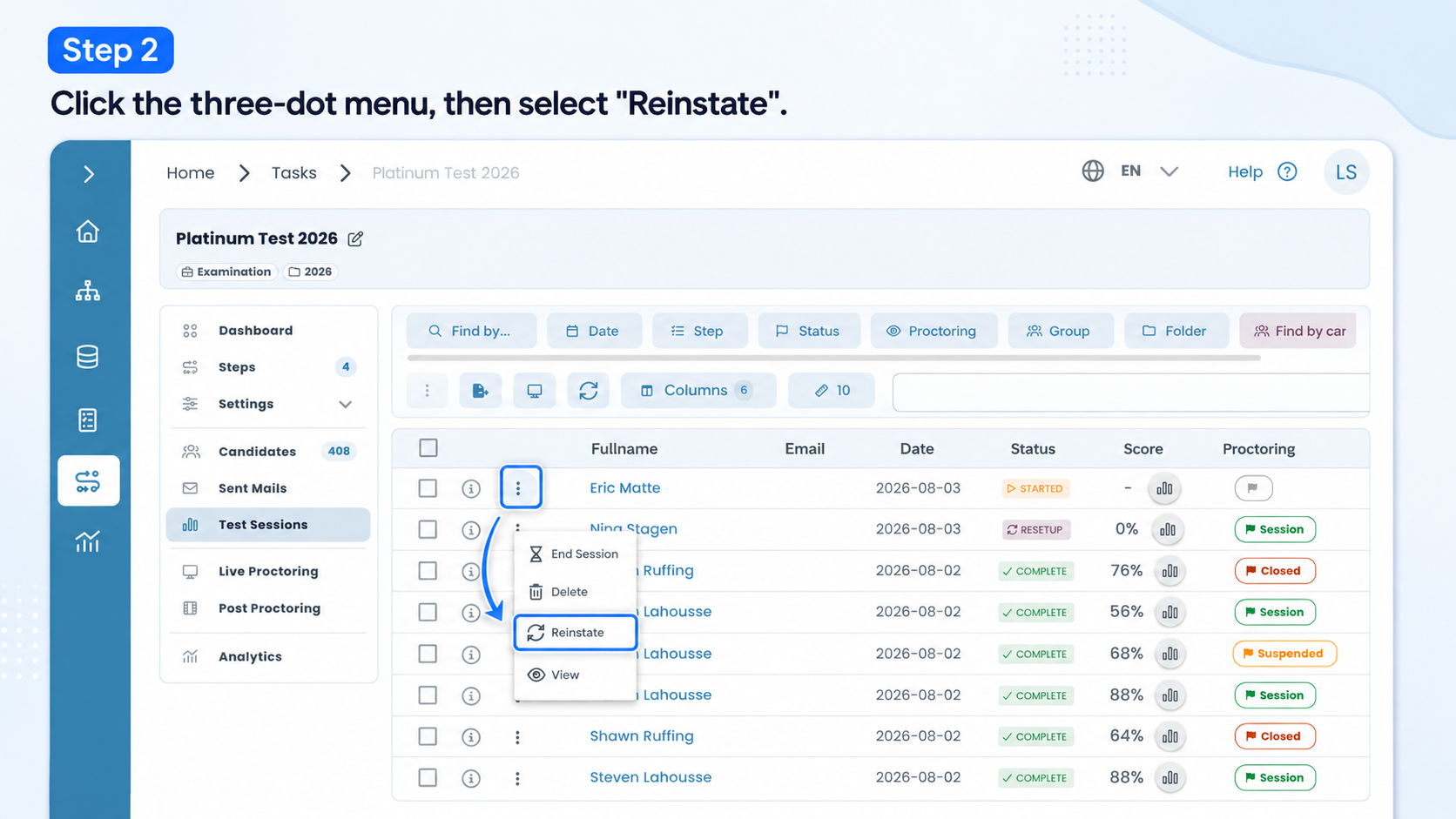
3) Click the 3-dot menu on the left side of that test session's row and select Reinstate.
Option 2: From the session report
1) From the same Test Sessions tab, open the test session's report.
2) Click Reinstate in the left navigation menu of the report.
Using the Reinstate dialog
The dialog lists the whole exam structure as a table: the test itself at the top, followed by each section, and each page within it. For every section and page you can see whether the candidate visited and submitted it, so you know exactly how far they got.
Choose where the candidate resumes
Only pages the candidate already visited can be selected as the resume point — look for the flag icon next to those pages. Click it to mark that page as the start-at page; a filled flag shows the currently selected one. The candidate's session will reopen exactly there, with everything before it left as already answered.
Lock or unlock sections and pages
A locked (closed lock) section or page is finalized — the candidate cannot go back and change answers there. An unlocked (open lock) one can still be revisited and edited once the session resumes. The section and page containing the selected start-at point cannot be locked, since the candidate needs to be able to work on it.
Set time limits
Next to each test/section/page row is a time-limit field where you set how much time the candidate gets for that level when the session resumes.
Display Interactions and Auto Configure
Two buttons in the footer help you configure time limits faster:
- Display Interactions — opens a report of how much time the candidate actually spent on each section and page, so you can decide fair remaining time limits.
- Auto Configure — automatically fills in the remaining time limits based on the candidate's actual durations, instead of setting them manually.
Confirming the reinstatement
Once you've selected a valid start-at page and set the time limits, click Reinstate at the bottom right to confirm. The test session status changes back to ongoing, and the candidate can resume the exam from the page you selected with the time limits you configured.
Note: the Reinstate button stays disabled until a valid start-at page is selected — make sure to pick one before trying to confirm.