
How to Evaluate Audio Answers with AI
Learn how to configure AI evaluation for Audio questions, transcribe spoken responses, and review AI-generated scores and feedback.
TestInvite allows you to automatically evaluate recorded audio responses using AI. The system transcribes spoken answers into text, evaluates them according to your instructions, and generates scores and feedback.
This guide explains how to create an Audio question, configure AI Evaluation, record a response, and review the evaluation results.
Step 1: Create an Audio Question
- Open the Question Bank and create a new question.
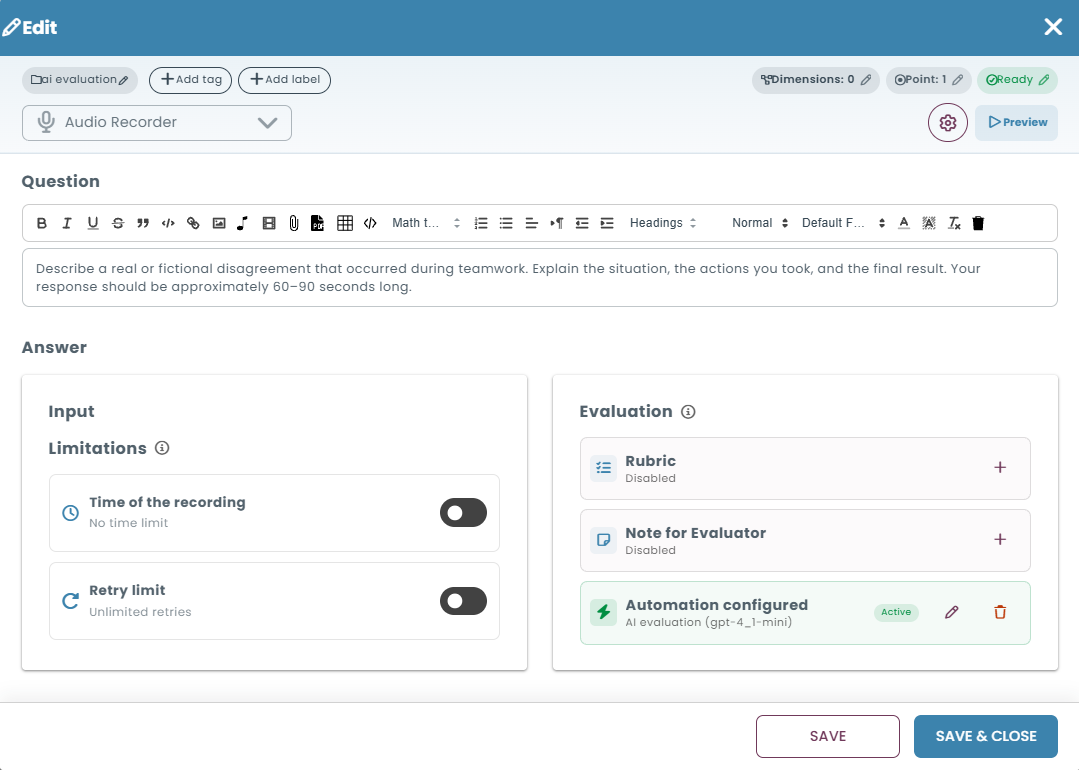
- Select Audio Recorder as the question type.
- Enter your question or speaking prompt.
- Under Answer → Input → Limitations, configure the recording settings if needed:
- Time of the recording: Set a maximum recording duration.
- Retry limit: Limit the number of recording attempts.
If these settings are disabled, no recording time or retry limits are imposed.
Step 2: Configure AI Evaluation
- In the Audio question editor, locate the Evaluation section under Answer.
- Click Add Automation (+) and select AI Evaluation.
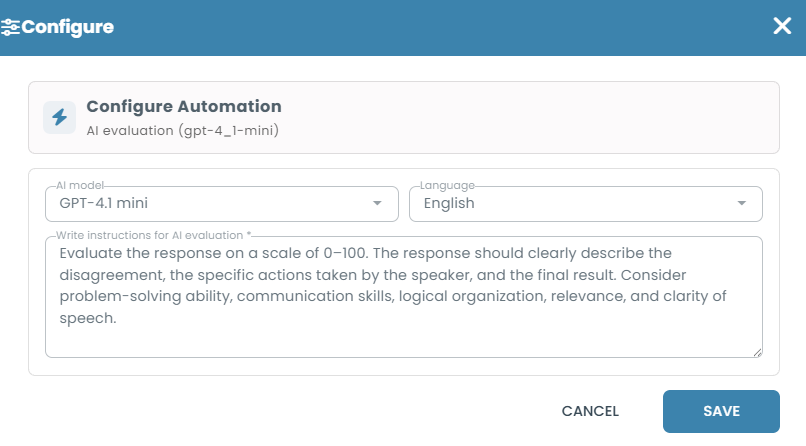
- Choose an available model from the AI model dropdown.
- Select the appropriate Language for the spoken responses.
- Enter your grading criteria in Write instructions for AI evaluation.
- Click Save to configure the automation, then save the question.
Once configured, the Evaluation section displays Automation configured, indicating that AI Evaluation is active.
Example AI Evaluation Instructions
Suppose the question asks candidates to explain how to identify a phishing email and describe appropriate safety actions.
You could use the following instructions:
Evaluate the response on a scale of 0–100. The response should include at least two warning signs of phishing and at least two appropriate safety actions. Consider factual accuracy, clarity, relevance, completeness, and the understandability of the transcribed response.
Clear grading instructions help the AI evaluate answers against your expectations. Only include criteria that can be assessed from the transcription, rather than acoustic properties of the recording.
For additional guidance, see AI Evaluation.
Step 3: Record an Audio Answer
When candidates encounter an Audio question during a test, they can record their response directly in their browser.
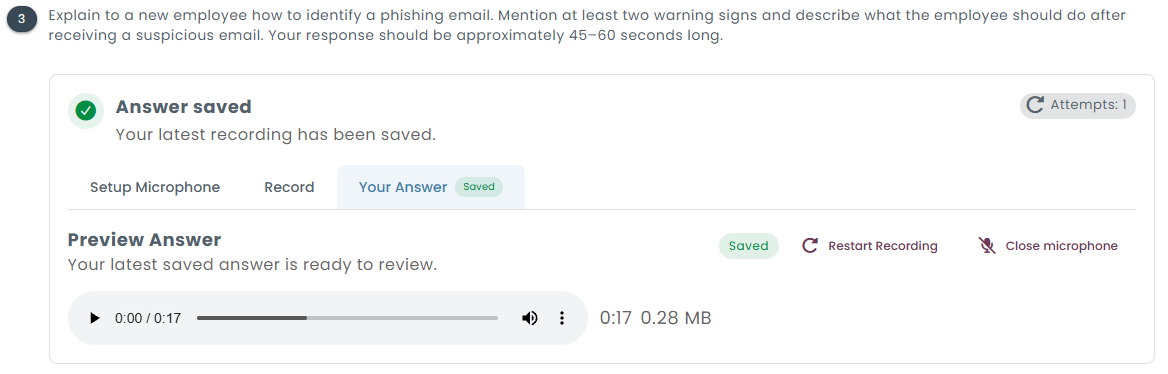
- Click Allow microphone to grant browser permission.
- Under Setup Microphone, select the appropriate microphone and check the input signal.
- Open the Record tab and click Start Recording.
- Speak the answer and click Stop Recording when finished.
- Open Your Answer to verify that the recording has been saved and play it back if needed.
Depending on the configured retry limit, candidates may also use Restart Recording to record another response.

Step 4: Review AI Evaluation Results
After the candidate submits their answer, TestInvite automatically transcribes the recording and evaluates the transcribed content according to your AI instructions.
To review the results:
- Open the candidate's test session report.
- Select Answers from the left navigation menu.
- Locate the Audio question you want to review.
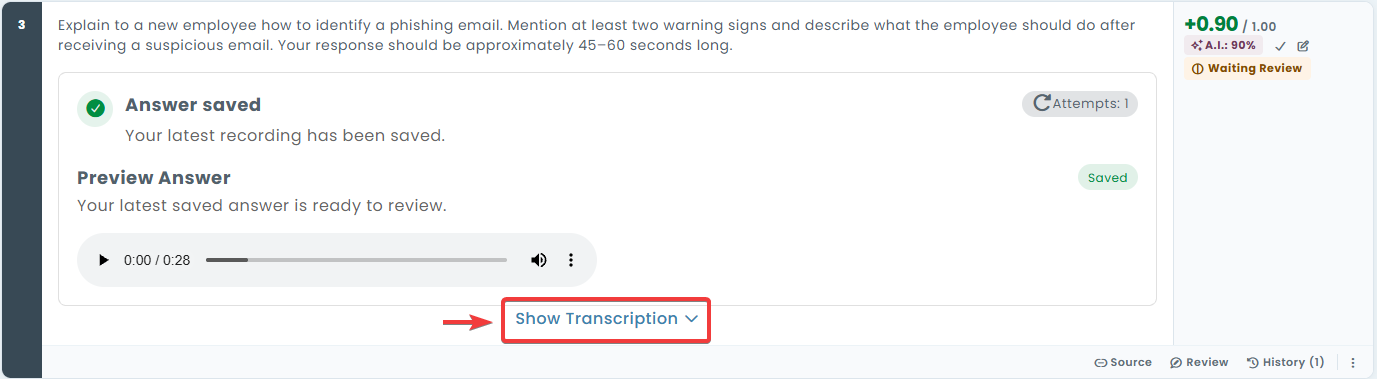
- Play the recorded response using the audio player.
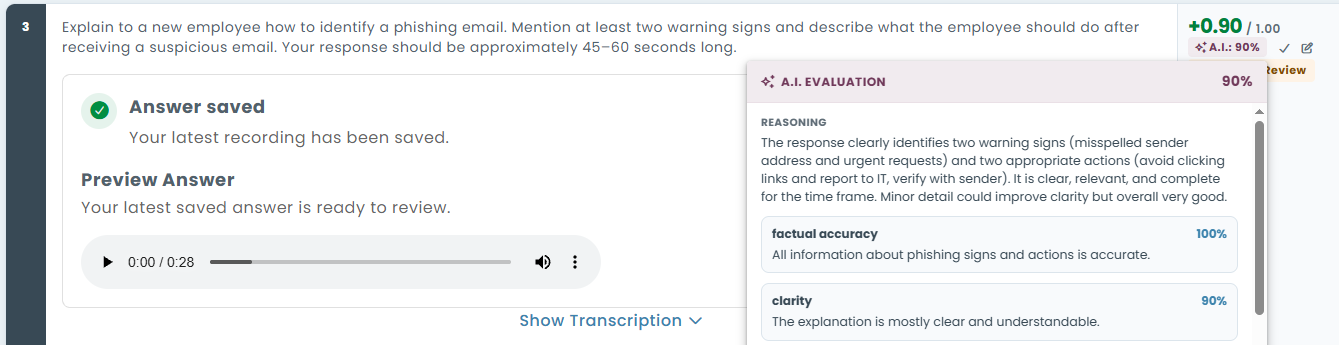
- Click Show Transcription to read the transcribed answer.
- Click the AI evaluation score to view the evaluation details.
The AI evaluation provides a score and written reasoning explaining the assessment. Depending on your instructions, the results may also show scores and feedback for individual criteria.
Step 5: Approve or Override the AI Evaluation
Administrators can review AI-generated evaluations and decide whether to retain or replace the suggested scores.
Approve the AI Score
An AI-evaluated answer awaiting confirmation displays Waiting Review.
Click the checkmark icon (✓) next to the AI evaluation score to approve it.
The status changes to Approved, and the AI-generated score is retained.
Override with a Manual Evaluation
To assign a different score:
- Click the manual evaluation (edit) icon next to the evaluation score.
- Enter a new evaluation as a percentage or point value.
- Click Apply.
The manual evaluation replaces the AI-generated score as the effective score. The earlier AI evaluation remains visible for reference.
Important Notes
- Transcription-based evaluation: AI evaluates the spoken response based on its transcription. Pronunciation, accent, and acoustic fluency are not directly assessed.
- Human oversight: Administrators can listen to the original recording, inspect AI feedback, and approve or override the evaluation.
- Grading instructions: Clearly defined criteria help produce more consistent and relevant evaluations.
- Subscription limits: AI Evaluation availability and usage limits depend on your subscription plan.